
No Sound In iPad Games? Here’s What You Need To Do
When sound suddenly disappears from your iPad games, it can make even the most immersive titles frustratingly silent. iPad users often run into this issue after an iPadOS update, a system glitch, or muted game settings, but it’s usually easy to fix. In this quick guide, you’ll learn why your iPad has no sound in games and the exact steps to get it back, from checking Silent Mode and Control Center volume to resetting audio settings. Whether you play Asphalt, Roblox, or Apple Arcade favorites, these proven fixes will restore full sound in minutes so you can enjoy your games with rich, responsive audio again.
Check Control Center and Volume Settings First
Start by checking the Control Center on your iPad. Swipe down from the top-right corner of the screen to access the control center and adjust the volume level by swiping up and down. You can also check the volume control buttons on your iPad and ensure they are not set to mute.
Disable Silent Mode to Restore Game Audio
If you’re not getting any sound on your iPad, you can toggle the bell icon to ensure silent mode is off.
Turn Off Reduced Loud Sounds Setting
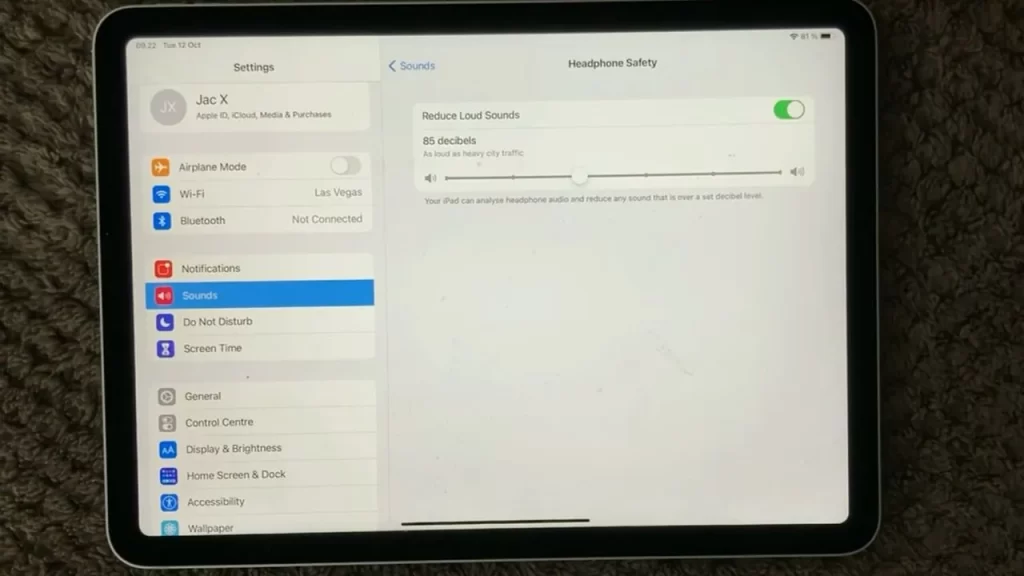
You can also adjust the “reduced loud sounds” setting to control the volume on your headphones. If you’re having sound issues, turn this setting off to rule it out.
Adjust Ringer and Alerts in Sound Settings
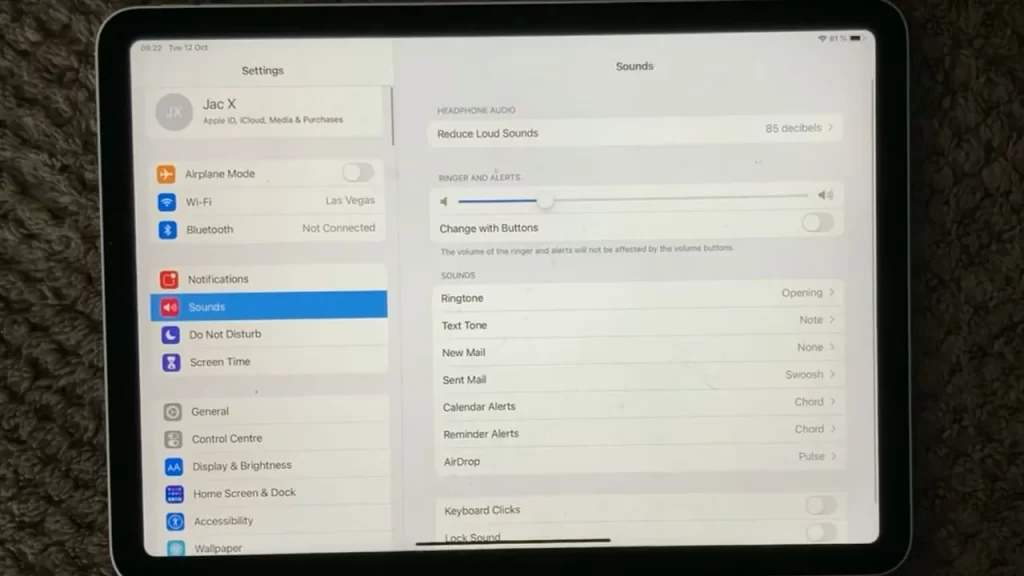
Another thing to check is your iPad’s settings. Under the sound section, you can adjust the ring volume using a slider. Drag the Ringer and Alerts sliders back and forth a few times. If you don’t hear any sound or your speaker button on the Ringer and Alerts slider is dimmed, your speaker might need service.
Disable Mono Audio in Accessibility Settings
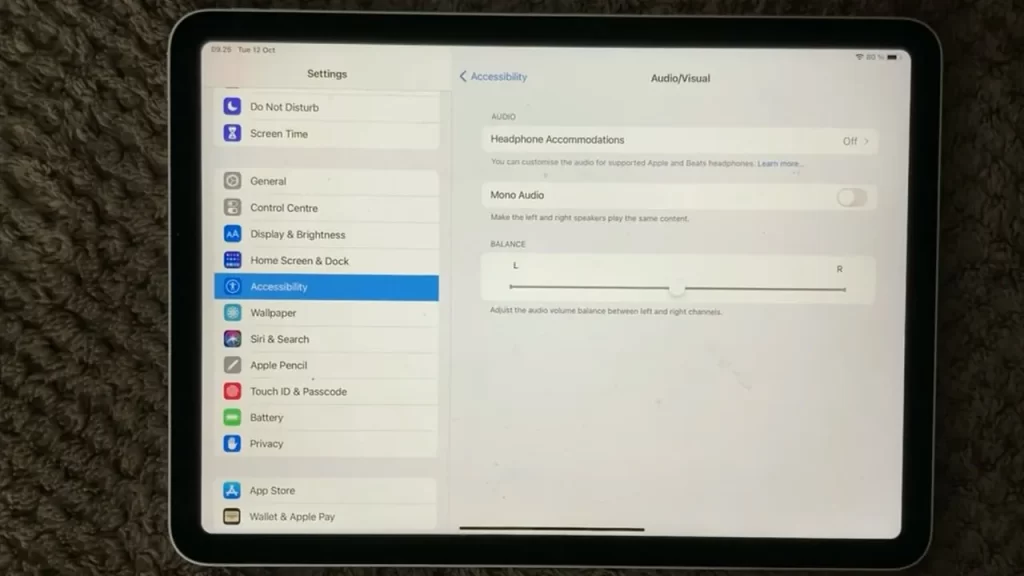
Sometimes we accidentally turn on mono audio. If you have issues with your sound, turn mono audio off to ensure it is not the cause. To turn this off, go to Settings>Accessibility>Hearing>Audio/Visual>Mono Audio
Verify In-Game Audio and Volume Settings
If sound is not working in a specific game, check the game’s audio settings. Look for an audio or sound options menu and ensure the sound is turned on and the volume is not set to 0.
7.Fix Audio Balance Between Left and Right Speakers
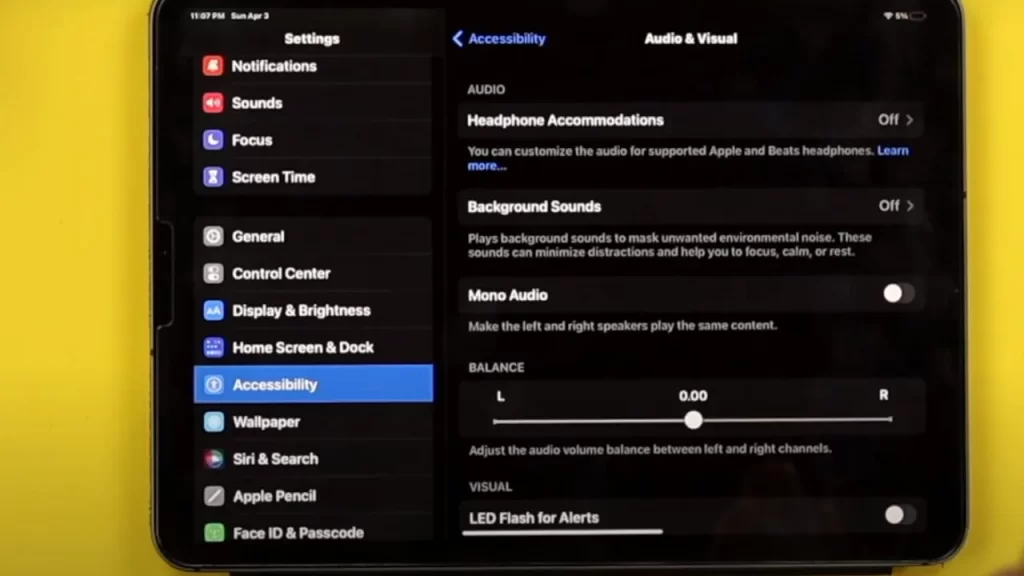
Regarding your audio balance, if you notice it is currently shifted to the left or right, one of your speakers will not function properly. To address this issue, go to Settings>Accessibility>Hearing>Audio/Visual>Balance. Simply move the balance to the middle and ensure that your mono audio is turned off. Further troubleshooting may be necessary if the problem persists, even after following these steps.
Disconnect Bluetooth to Fix iPad Speaker Audio
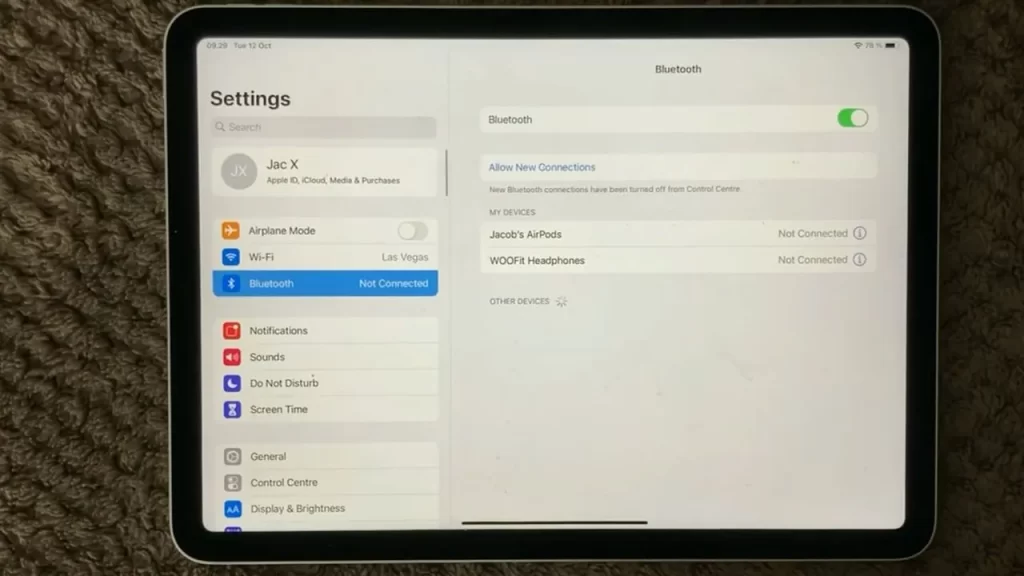
If the sound remains problematic, turn off Bluetooth completely. This precautionary measure is necessary as the iPad may attempt to transmit sound to a previously connected Bluetooth device rather than the internal speakers.
Fix iPad Stuck in Headphone Mode
Occasionally, the iPad is stuck in headphones mode, and audio does not play through the speakers. This happens when lint, dirt, liquid, or other debris gets stuck inside the headphone jack. In this case, you can clean the headphone port, turn your iPad off and back on again, or try another pair of headphones.
Troubleshoot Bluetooth Headset Connection Issues
If you cannot connect your Bluetooth headphones to your iPad, make sure they are not already connected to another device. This is a very common issue. Additionally, make sure the Bluetooth headset and iPad are close together. However, sometimes you just have to turn the Bluetooth off and on again to fix the issue.
Enable AssistiveTouch for Broken Volume Buttons
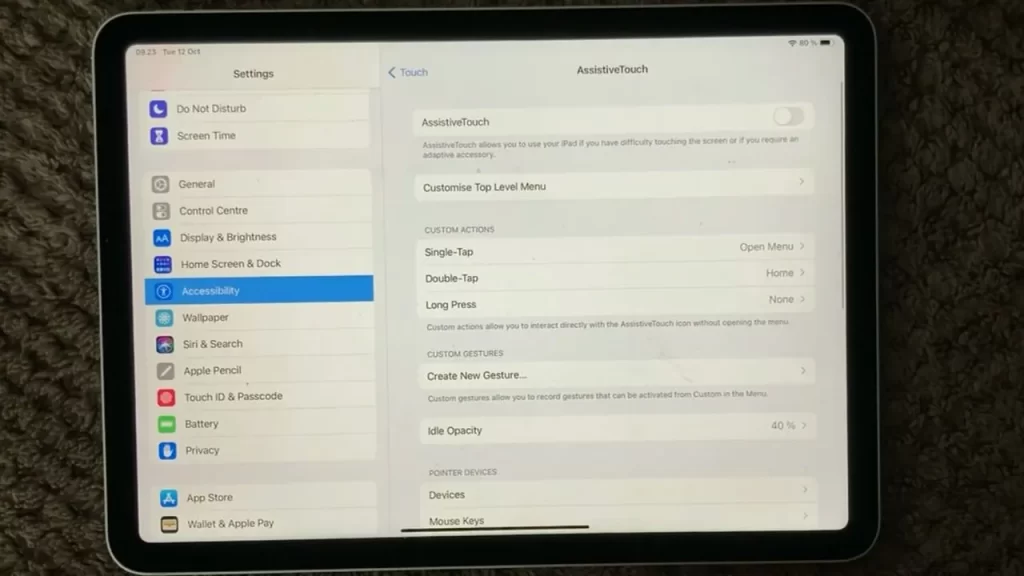
Assistive Touch is another helpful feature that can help you troubleshoot sound issues. Turning it on gives you access to a control panel that lets you adjust the volume up or down. This is especially useful if you’re having issues with the physical controls on your device.
Check Mute Switch on Older iPad Models
Some older iPads have a mute switch. If you still have it! Check and make sure that you have not switched yours on. Apple removed the mute switch from the 2017 iPad models.
Clean iPad Speakers to Remove Debris Blockage
The sound quality may diminish when particles and dust accumulate on the speaker’s surface. Simply use a brush to clean the speaker’s surface to remedy this. This action may resolve your issue, and it is worth checking.
Force-Quit and Restart the Game App
If the game’s audio engine glitches, force‑quitting and reopening can quickly restore sound. Swipe up from the bottom and pause to open the App Switcher, swipe up on the game to close it, then reopen the game and test audio again.
Restart Your iPad to Clear Audio Glitches
Restarting your iPad can help resolve sound issues in iPad games. Press and hold the power button until the “slide to power off” screen appears. Swipe the slider to the right to turn off the iPad, then press and hold the power button again to turn it back on. Sometimes, rebooting your device actually solves issues quite easily
Reset All Settings Without Deleting Data
If none of the above steps have resolved the issue, you can try resetting your iPad settings. Go to Settings > General > Reset, then select “Reset All Settings.” This will restore all settings to their default values, without erasing any data from your iPad.
Perform a Hard Reset for Persistent Sound Issues
A hard reset can clear transient system audio bugs. For iPads without a Home button, press Volume Up, then Volume Down, then hold the Top button until the Apple logo appears; for iPads with a Home button, hold Home + Top (Power) until the Apple logo appears, then release and test the sound in the game.
Update iPadOS to Fix Known Audio Bugs
If the problem persists even after taking the steps mentioned above, check for any pending software updates. Go to Settings > General > Software Update and check for updates. Ensure you have installed the latest software version; failure to do so could result in malfunctioning speakers.
Conclusion
These tips and tricks help you get your sound back up and running on your iPad. It’s important to remember that hardware problems, such as a faulty speaker, can also cause sound issues. If the troubleshooting steps do not resolve the issue, you may need to take your iPad to an Apple Store for repair.
Recommended Readings
Xbox Cloud Gaming on iPad: Take Your Gaming to the Next Level
Frequently Asked Questions
This usually happens when Silent Mode is enabled or Bluetooth is still connected to headphones. Open Control Center, check that the bell icon is gray (not red), and disable Bluetooth if needed. If sound works elsewhere, restart the game to refresh its audio state.
Swipe down from the top‑right corner to access Control Center. Tap the red bell icon to disable Silent Mode. It often mutes in‑game sounds but not music or videos.
Sometimes the game’s internal audio settings are turned off. Open the game’s settings menu to make sure music and effects are enabled. Then verify the iPad’s volume using the side buttons or Control Center.
If Bluetooth is connected, your iPad sends audio there instead of the speakers. Go to Settings › Bluetooth and turn it off or unpair connected devices. Test the game again with Bluetooth off.
Yes. Outdated iPadOS builds may cause sound driver issues. Go to Settings › General › Software Update and install any available updates to restore normal audio playback.
App configuration or cached errors can persist. Try uninstalling, reinstalling, or resetting all settings under Settings › General › Transfer or Reset iPad › Reset All Settings to clear conflicts without losing data.
Remove your case and gently brush the speaker grilles with a small, dry, soft‑bristled brush. Debris buildup can block sound output even when the volume is high.
Persistent silence may indicate iOS system corruption or a hardware fault. Use professional repair tools or contact Apple Support for diagnostics.