How to Import .RMDoc Files to reMarkable 2 & Paper Pro
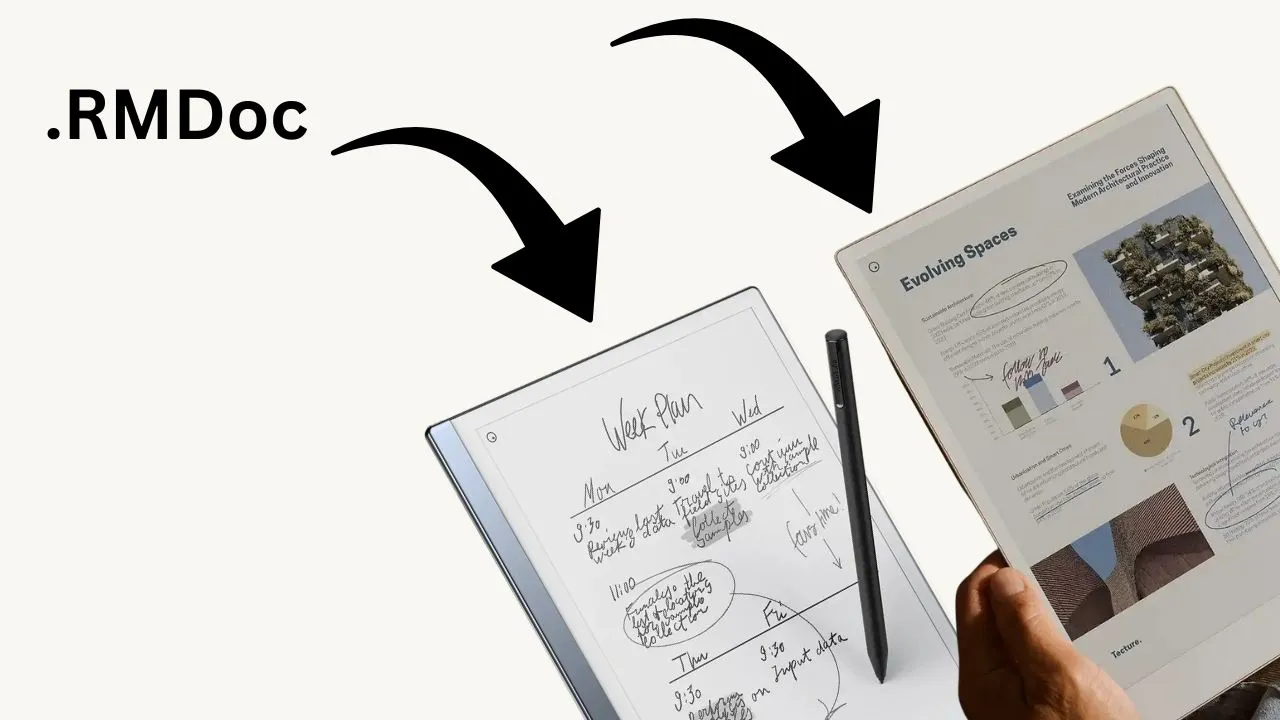
If you just downloaded a .rmdoc file and your reMarkable won’t open it, you are not alone. The app’s import button only accepts PDFs and EPUBs, so many users get stuck right away. Here is the good news: getting .rmdoc files onto your device takes less than two minutes once you know which method to use.
What Is an .RMDoc File?
An .rmdoc file is a native reMarkable document format that can store interactive content. Unlike a PDF, it does not just display a static page. It holds live, interactive objects, such as reusable stickers, productivity trackers, or shapes you can select, move, and copy into any notebook or planner on your device.
The objects inside an .rmdoc file are ready to use the moment you open the file. You do not have to trace over anything or manually convert the content. Just open the file, grab what you need with the Lasso tool, and paste it wherever you want.
You will often find .rmdoc files sold on Etsy as sticker packs or planner templates designed for the reMarkable 2 and reMarkable Paper Pro.
Two Ways to Import .RMDoc Files
There are two reliable methods that work on both the reMarkable 2 and the Paper Pro: the desktop app and a USB cable. A third option, the my.remarkable.com website, does not support the .rmdoc format at this time, so skip that route entirely.

Method 1: Desktop App (Drag and Drop)
This is the fastest way. Most users get it done in under a minute.
Step 1: Download the reMarkable desktop app from remarkable website. Pick your operating system (Windows or Mac) and install it.
Step 2: Open the desktop app on your computer. Make sure your reMarkable is connected to Wi-Fi and signed into the same account.
Step 3: Open your Downloads folder (or wherever you saved the .rmdoc file) alongside the desktop app.
Step 4: Drag the .rmdoc file from your Downloads folder directly into the desktop app window and drop it there.
Step 5: Wait for the app to sync. The file will appear on your reMarkable automatically. One thing worth noting: do not drag the file from the downloads panel inside your browser. That method does not work. You need to drag it from an actual file explorer window.
Method 2: USB Cable
If your Wi-Fi connection is unstable or you prefer a wired transfer, the USB method works just as well.
Step 1: Grab your reMarkable and its original USB-C cable.
Step 2: Connect the cable between your reMarkable and your computer.
Step 3: On your reMarkable, open Settings, go to Storage, and turn on USB Web Interface. A local web address will appear on the screen, something like http://10.11.99.1.
Step 4: Type that address into your computer’s browser. A simple file manager interface will load.
Step 5: Click Import, choose your .rmdoc file, and upload it. The file transfers directly to your device.
The USB web interface gives you a clean way to manage files without needing Wi-Fi. It works reliably on both Windows and Mac.
How to Use .RMDoc Files After Import
Once the file appears on your reMarkable, open it as you would any other notebook. You will see the stickers or objects sitting on the page as selectable items right away.
Here is how to move them into your other notebooks:
- Open the .rmdoc file on your reMarkable.
- Use the Lasso tool to select the object or sticker you want.
- Tap Copy.
- Swipe down with two fingers to go back to your file list.
- Open the notebook or planner where you want to use the sticker.
- Tap Paste.
You can copy objects in bulk, too. Select everything on a page with the Lasso tool, copy it all at once, and then rearrange the items after you paste them.
Common Issues and Fixes .RMDoc Files
Getting stuck? Here are the most common problems people run into:
- The Import button does not accept .rmdoc files: The in-app Import button and the my.remarkable.com website only accept PDFs and EPUBs. You must use the desktop app or USB method for .rmdoc files.
- Drag-and-drop does not work: Make sure you are dragging from a file explorer window, not from your browser’s download tray.
- File does not appear on the device: Check that your reMarkable and the desktop app are connected to the same account and that Wi-Fi sync is active.
- Objects appear but are not selectable: The file may not be in the proper .rmdoc format. Some sellers package files differently. Contact the creator for a correctly formatted version.
Where to Find .RMDoc Files
Etsy is the most popular place to buy .rmdoc sticker packs and planner templates for reMarkable. You can also find free files shared in the reMarkable subreddit and in Facebook groups dedicated to reMarkable users.
When you buy or download a file, the seller typically includes their own import instructions. If something does not work, check those instructions first, then compare them with the steps above.
Recommended Reading
20 reMarkable Tips & Tricks Every reMarkable Owner Should Know
Now that your .rmdoc files are on your device, there’s a lot more your reMarkable can do. This guide covers 20 practical tips from mastering the Lasso tool to organizing notebooks and boosting your digital writing workflow, helping you get real daily value from your device.
10 Common reMarkable Problems & How to Fix Them
If your .rmdoc file synced but something still feels off, this troubleshooting guide has you covered. It walks through the most frustrating reMarkable issues, including sync failures, unresponsive tools, and Wi-Fi connection problems, with clear, tested fixes so your device runs exactly as it should.