Essential Calibre Tips and Tricks You Need to Know
You’ve been using Calibre for years. You know it converts EPUBs to MOBI; you may have even edited metadata. But you’re still dragging files into the window one by one, manually fixing line breaks in scanned PDFs, and emailing books to your Kindle like it’s 2012.
Calibre isn’t a converter. It’s a database with a conversion engine bolted on. The difference matters. Once you dig past the default interface, you’ll find dozens of settings that quietly transform how the app looks, feels, and performs.
You don’t need to be a developer to unlock most of this. You just need to know where to look.
Here are 28 essential Calibre tips and tricks to help you stop managing files one at a time and start running a library.
Make It Yours
1. Reskin The Whole Interface
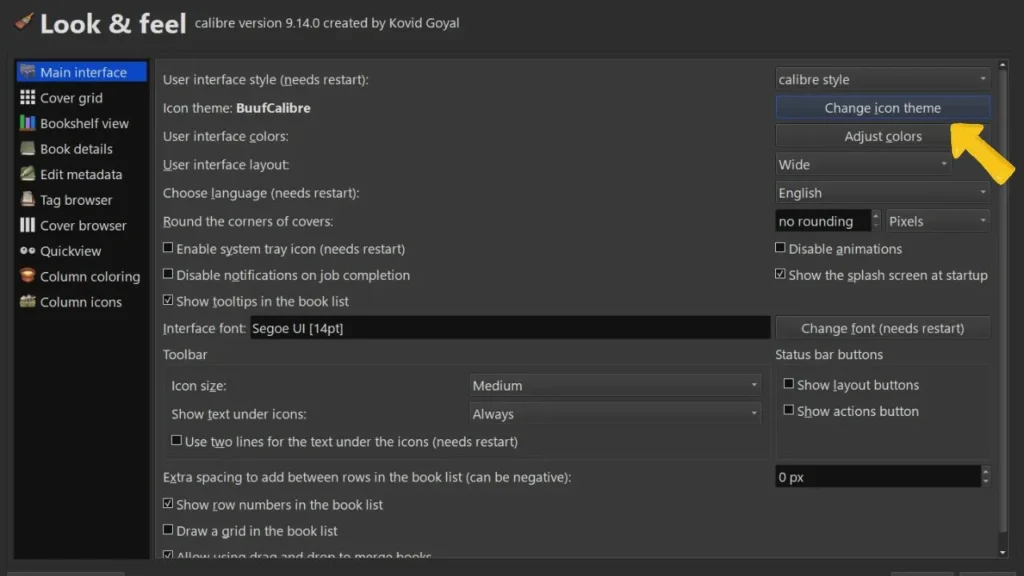
Calibre’s default icons look like they were designed during the Clinton administration. You can fix that. Go to Preferences > Look & Feel > Main Interface. Under Change icon theme, swap out the dated system icons for cleaner, modern asset packs.
Changing themes requires a quick Calibre restart, so add a dedicated Restart button to your toolbar under Preferences > Toolbars & Menus to make tinkering painless.
2. Switch to Dark Mode
If you spend any serious time in Calibre, that blazing white interface will wear you down. Go to Preferences > Look & Feel > Main Interface > Adjust Colors, find the color palette dropdown, and switch to Dark. Calibre 7’s Qt 6 engine makes it look dramatically better than in earlier versions. It is consistent, polished, and easy on the eyes during late-night library sessions.
3. Customize Your Colors, Fonts, and Column Styles
You can go far beyond dark mode. Under Preferences > Look & Feel, the Adjust Colors option lets you change highlight bars, alternating row colors, and background tones. You can also swap fonts and font sizes, which helps with readability or makes your library feel less clinical. Under Column Coloring, you can set rules that automatically color-code rows based on metadata, like turning unread books red and completed ones green.
4. Turn On the Cover Grid for a Bookshelf Feel
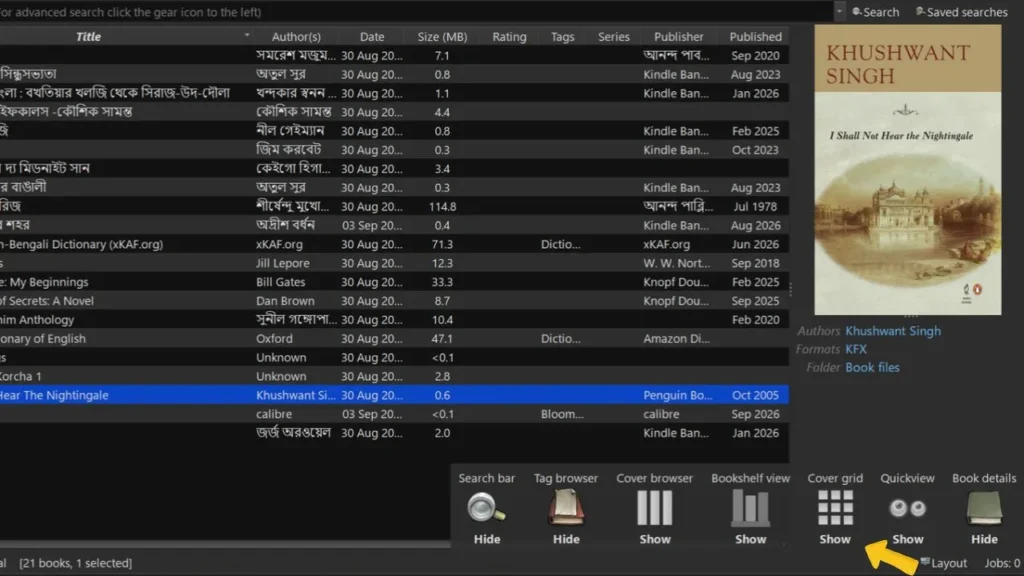
Calibre’s default list view is functional, but if you want your library to actually look like a library, switch to Cover Grid. Click Layout in the bottom-right corner and select Show Cover Grid. You’ll get a visual mosaic of your book covers. You can customize the background color or texture under Preferences > Look & Feel > Cover Grid — swap in a wood-grain texture, toggle title labels on or off, or adjust spacing to taste.
5. Launch the Cover Browser and Let Your Books Scroll By
This one is pure bookish indulgence. The Cover Browser displays your collection in a 3D carousel that you can flip through with your mouse. Enable it in the Layout menu at the bottom of the screen. Want to go further? Under Preferences > Look & Feel > Cover Browser, check Show in a Separate Window, restart Calibre, then set it to scroll and minimize the main window. You now have a rotating bookshelf screensaver on your desktop. Impractical? Sure. Satisfying? Unreasonably so.
Organize Like You Mean It
6. Split Your Library With Virtual Libraries
If your library holds thousands of titles and scrolling through them makes your eyes glaze over, Virtual Libraries are the answer. They let you create filtered views- fiction only, unread only, books from a specific year that function like separate libraries without duplicating a single file.
Click the Virtual Library button (top-left, next to the search bar) → Create Virtual Library → define a saved search like tags: “sci-fi” AND NOT read: true. Switch between them like tabs. Zero file duplication. Zero folder restructuring.
7. Add Custom Columns for Anything You Want to Track
Calibre’s default columns cover the basics, but you can add your own. Go to Preferences > Add Your Own Columns and create fields for “Read Status,” “Page Count,” “Format Quality,” or anything else that matters to your workflow. Want a green checkmark next to every book you’ve finished? Create a Yes/No column, then set up a column icon rule under Preferences > Look & Feel > Column Icons. Want a computed column that flags books with attached data files?
8. Create a Custom Genre Column With Hierarchies
Tags are fine, but they’re flat. For real organizational power, create a custom Genre column that supports hierarchies. Go to Preferences > Add Your Own Columns, click the green plus button, and create a new column with the type set to Comma-separated text like tags, shown in the Tag Browser. Name it “Genre.” Then go to Preferences > Look & Feel > Tag Browser > Hierarchy and Searching and enable hierarchy for your new column. Now you can build nested categories — Romance > Romcom > Emily Henry or Suspense > Thriller — and drill down through them in the tag browser sidebar. A book can live in multiple genres simultaneously, because these aren’t folders. They’re labels. Your library, your taxonomy.
9. Use Tags For Fast Browsing
Tags are still one of Calibre’s most practical tools. Tags come in automatically when you download metadata, and you can add your own with a right-click. The real power is in the Tag Browser on the left sidebar: click any tag romance, sci-fi, contemporary and Calibre instantly filters your view to show only matching books. You can also create your own tags for anything metadata doesn’t cover, like “Beach Reads” or “climate.”
10. Group Books by Series, or Invent Your Own
If a book belongs to a series, that information lives in its metadata, and Calibre groups series entries together automatically. But here’s the trick most people miss. You can type in any series name you want. Open a book’s metadata, type a custom series name in the Series field, and assign it a number. Suddenly you’ve got a curated reading order for books that were never officially a series, like your own personal “Best Thrillers of 2025” lineup, indexed and sortable.
Master the Conversion Engine
11. Bulk Convert Your Entire Library in One Shot
You don’t need to convert books one by one. Hold Ctrl or Shift to select a batch or hit Ctrl+A to grab everything, then click Convert. Calibre kicks into Bulk Convert mode and processes your entire selection into your preferred output format at once. Set your default format under Preferences > Behavior > Preferred Output Format so you don’t have to pick it every single time.
12. Fix Messy PDFs With Heuristic Processing
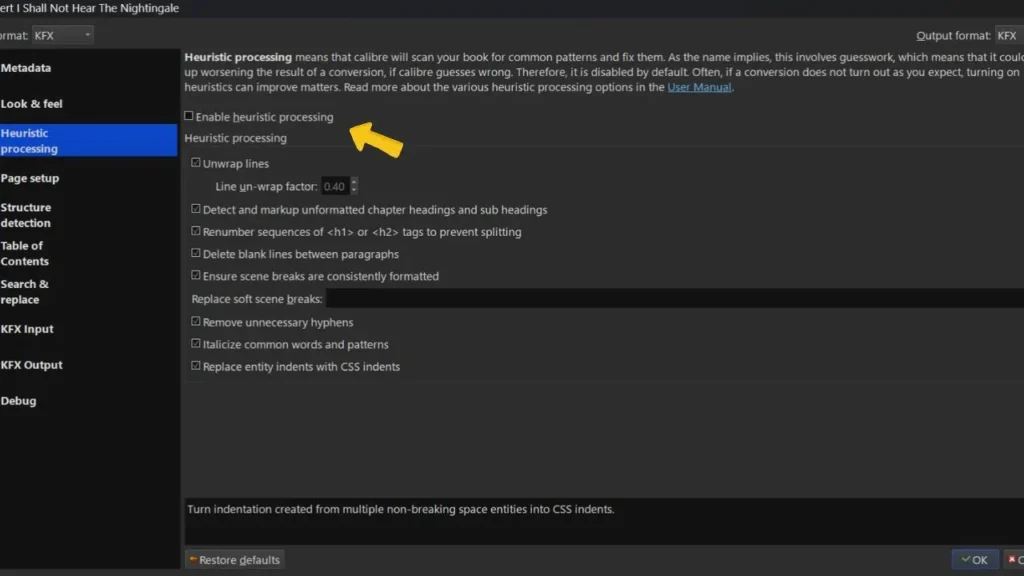
Converting a rough PDF to EPUB is usually frustrating. You will find orphaned hyphens, broken paragraphs, random line breaks everywhere. Before you resign yourself to manual cleanup, try this during conversion: Enable Heuristic Processing. Calibre will attempt to detect and repair paragraph breaks, remove stray hyphens, and reconstruct the text flow. It’s not magic; some PDFs are beyond saving, but it handles the typical mess surprisingly well.
13. Auto-Convert Imported Books to Your Preferred Format
Here’s a small setting that removes a lot of friction. Go to Preferences > Adding Books > Adding Actions and check Automatically convert added books to the preferred output format. Set your preferred format to KFX under Preferences > Behavior. If your preferred output is KFX, every EPUB or MOBI file you import will automatically generate a KFX copy alongside the original. When you’re ready to send a book to a non-Kindle device, the right format is already waiting.
14. Convert to KFX for the Best Kindle Experience
If you read on a Kindle, KFX is the format you want. It delivers Amazon’s enhanced typesetting, superior word spacing, sharper hyphenation, ligatures, and faster page turns. For KFX files, you will need Calibre, the KFX Input/Output plugin, and Amazon Kindle Previewer 3. For the complete installation and conversion process, see this step-by-step guide to converting EPUB to KFX in Calibre.
15. Filter Out Ugly CSS During Conversion
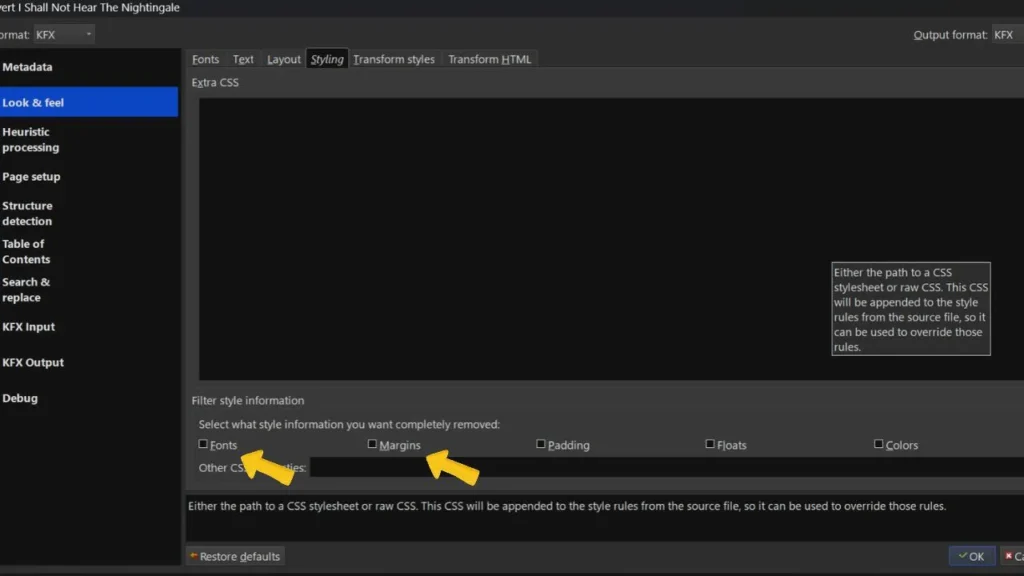
Some publishers hard-code hideous fonts, giant margins, and awkward line heights directly into their stylesheets. During conversion, navigate to Look & Feel > Styling >Filter Style Information. Check the boxes for Fonts and Margins. Calibre will strip the original book’s CSS styling, so your reading device applies its own clean defaults instead. The result is a book that looks like it belongs on your Kindle, not like it was formatted in a Word document from 2003.
16.Lossless Image Compression
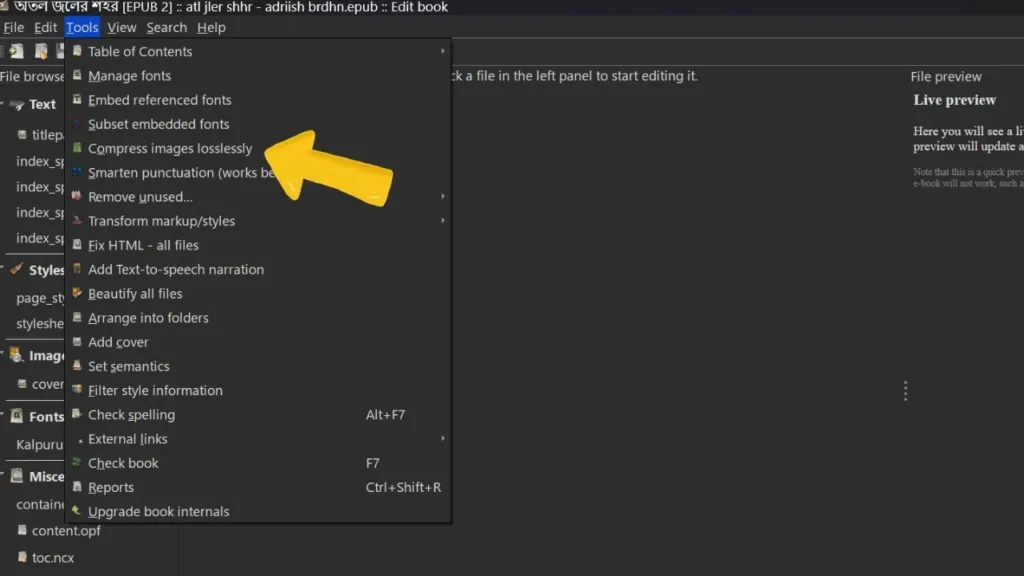
Graphic-heavy books can needlessly consume hundreds of megabytes. Open Calibre’s internal book editor, head to Edit Book > Tools > Compress Images Losslessly, and shrink the entire file footprint by megabytes without visible degradation on your e-reader display.
17. Replace Missing Or Unattractive Book Covers With AI
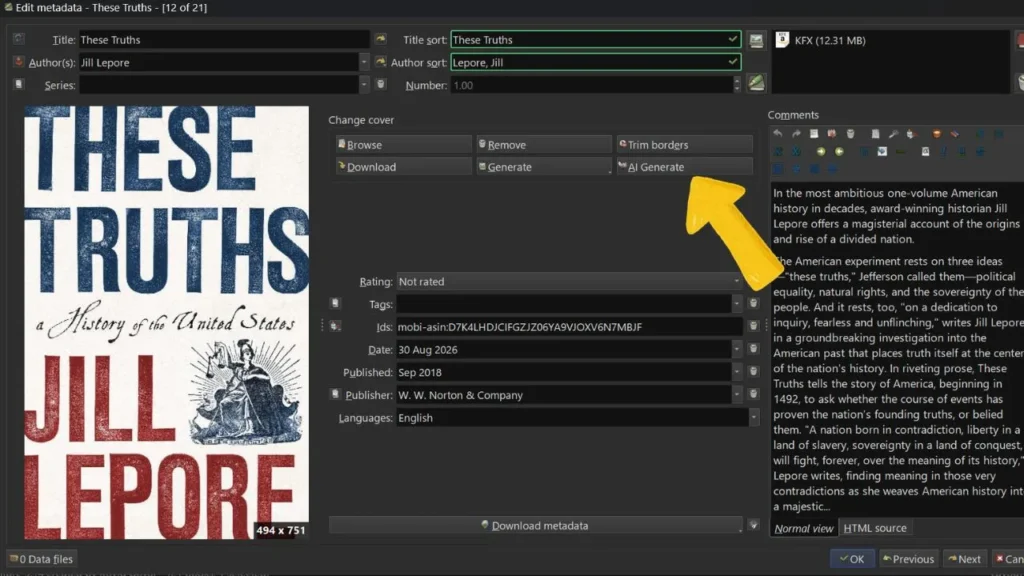
In Calibre, you can generate covers with AI. It includes genre-oriented styles such as romance, science fiction, and pulp fiction. In Calibre, select the book, open Edit metadata, and choose AI Generate. To use it, you need an API key from an AI provider that supports image generation.
For better results, make sure the book’s metadata is accurate. Then choose a style that fits the work’s tone, generate several alternatives, and select a cover that remains clear and recognizable at small thumbnail size. You can also use a custom prompt when the presets do not match the book’s subject or period.
Automate the Tedious Stuff
18. Set Up an Auto-Add Folder
Go to Preferences > Adding Books > Automatic Adding and point Calibre to a folder on your computer. From that moment on, any ebook file you drop into that folder gets imported into your library automatically- no manual intervention, no dragging and dropping.
19. Grab Covers and Metadata Instantly
Select any book with a missing cover and press Ctrl+D. Calibre reaches out to Amazon, Google, and Open Library, pulls back a polished cover image, a full description, publication dates, ratings, tags, and more. You’ll get a side-by-side comparison of what you have versus what it found. Review it, click the arrows to accept what you want, and hit OK. Done. You can also do this in bulk: select multiple books, right-click, and choose Edit Metadata > Download metadata and covers. Calibre processes them sequentially and lets you review each one.
20. Auto-Send Converted Books to Your Kindle
Set up your Amazon “Send to Kindle” email address inside Calibre under Preferences > Sharing > Sharing Books by Email > Add email, and Calibre will automatically email finished conversions to your Kindle over WiFi. For better cover preservation, though, consider using Amazon’s Send to Kindle web tool or desktop app. Send your EPUBs through that pipeline, and Amazon processes them with full cover art intact.
21. Turn RSS Feeds Into a Personal Morning Newspaper
Calibre’s Fetch News feature pulls articles from RSS feeds. It fetches news from the BBC, The New York Times, The Guardian, and dozens of others, and compiles it into a newspaper-style ebook. Schedule it to run every morning, and you’ll have a fresh digest waiting on your Kindle before you’ve finished your coffee. It’s one of Calibre’s most underrated features, and it’s been quietly running for over a decade.
Install the Plugins That Actually Matter
22. Find and Kill Duplicate Files
The Find Duplicates plugin scans your entire library for repeat copies of the same book, matching by title, author, ISBN, or format, and lets you delete the extras. If your library has grown organically over the years, this plugin alone can reclaim significant storage space and clean up your catalog.
23. Count Real Pages and Words
The Count Pages plugin scans your EPUB files and calculates accurate page and word counts. No more relying on Amazon’s estimates or guessing based on file size. The data is stored in a custom column you can sort and filter, which is useful if you want to know exactly what you’re getting into before starting a 900-page book.
24. Run a Quality Check on Your Whole Library
The Quality Check plugin is your library’s health inspector. Once your library gets large, quality control matters. It scans everything and flags books with missing covers, oversized files, malformed EPUBs, absent metadata, or other issues. Run it periodically, and your collection stays clean without manually inspecting thousands of entries.
25. Merge or Split Books With EpubMerge and EpubSplit
Want to combine an entire ten-book series into a single massive file? EpubMerge does exactly that. Need to extract specific chapters from an oversized anthology? EpubSplit pulls out sections and creates standalone files. Both plugins handle repackaging seamlessly, including the table of contents, chapter markers, and all.
The Power Moves
26. Polish Books Without a Full Reconversion
Here’s a feature most people don’t even know exists. Polish Books updates a book’s metadata, embeds fonts, and compresses images, all without running a full conversion. It’s faster, less destructive, and perfect for fine-tuning books that are already in the right format. If you don’t see it in your toolbar, add it through Preferences > Toolbars and menus > Click to choose toolbar or menu to customize > The main toolbar > Add Polish Books.
27.Share Your Library
Calibre’s built-in Content Server turns your computer into a personal ebook website. Click Connect/Share > Start Content Server, and Calibre spins up a local web server on port 8080. Open a browser on your phone, tablet, or any other device on the same network, navigate to your computer’s IP address, and you’ve got wireless access to your entire library.
You can download books directly, browse by cover, search by title or author, all through a mobile-friendly interface. If you want to lock it down, set up a username and password under Preferences > Sharing > Sharing Over the Net. The server also provides an OPDS catalog, which means apps like KOReader and Moon+ Reader can connect to it natively.
28.Quick-Reference Keyboard Shortcuts
You don’t need the mouse for most common Calibre actions. Memorize these, and you’ll move through your library twice as fast.
| Shortcut | Action |
|---|---|
| E | Edit metadata |
| C | Convert book |
| T | Tweak EPUB (direct editing) |
| V | Open built-in viewer |
| Del | Delete selected book |
| Ctrl+D | Download metadata and cover |
| Ctrl+R | Restart Calibre |
| Ctrl+Shift+E | Bulk edit metadata |
Conclusion
So how many of these did you already know? Calibre has been free and open-source for nearly two decades, maintained with an almost obsessive release cadence by developer Kovid Goyal. It doesn’t require a subscription. It doesn’t lock features behind a paywall. It just quietly does more than most people ever realize, if you know where to look. Now you do.
Recommended Reading
Why Sideloaded Books Disappear on Kindle (and How to Prevent It)
You’ve just spent time perfecting your Calibre conversion settings; don’t let the results vanish. This guide tackles a frustrating quirk that hits Calibre users specifically. Sideloaded books that mysteriously disappear from Kindle libraries, and the simple fixes that keep your carefully converted files where you put them.
The Ultimate Guide to Kindle Storage: 8 GB vs. 16 GB vs. 32 GB
Once your Calibre library is running at full capacity bulk-converted, deduplicated, and auto-fed via a watch folder storage becomes the next bottleneck. This guide breaks down how far each Kindle storage tier actually stretches, so you know when it’s time to upgrade or start trimming your library.