Proven Tips to Optimize Battery Life on Your reMarkable Device
You bought a reMarkable device to escape screen glare, endless email notifications, and daily charging anxiety. You expected weeks of uninterrupted writing on a single charge, not another gadget begging for a wall outlet.
Marketing claims often paint an idealized picture. The company advertises up to two weeks of battery life across its device family. That estimate assumes light daily use under specific testing conditions, typically about one hour of writing per day, with wireless connections off and the front light disabled.
Real work demands more than that. Take notes through back-to-back client meetings, sketch out a schematic during a design review, or annotate a stack of contracts before lunch, and your battery percentage starts sliding fast. Every screen refresh and background sync pulls extra current from the cell, and by day three you’re already hunting for a charging cable.
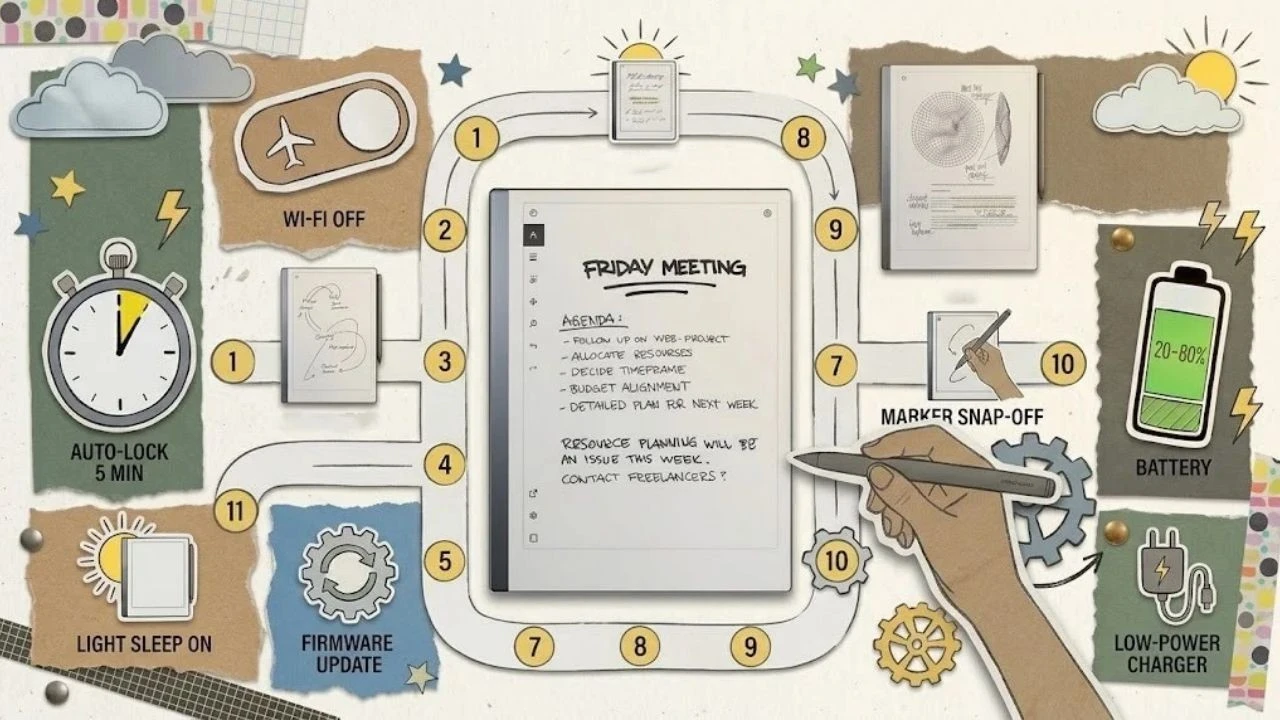
You do not need to accept short battery runtimes. Small adjustments to your daily habits and device settings add up quickly. By tuning background settings, rethinking stylus placement, and applying smarter charging habits, you can stretch every charge much further. Here are eleven practical tips to optimize battery life on your reMarkable device, whether you use a reMarkable 2, Paper Pro, Paper Pure, or Move.
How Long Should Your reMarkable Battery Last?
Before you optimize battery life on your reMarkable, it helps to know what’s normal. These are typical real-world estimates, not lab figures, so your results will vary with firmware, temperature, and how you write.

| Device | Conservative Use (Wi-Fi off, front light off) | Heavy Use |
|---|---|---|
| reMarkable 2 | 1-2 weeks (2-3 hours of writing per day) | 5-7 days (5+ hours per day) |
| Paper Pro | About 1 week (2-3 hours per day) | 3-4 days with front light and Wi-Fi on; about 2 days with everything on |
| Move | 5-7 days for daily note-takers; weeks for occasional use | Similar to the Paper Pro, but Wi-Fi and front light have a bigger impact because of the smaller battery |
| Paper Pure | rM2-level battery life (monochrome display, no front light) | |
1. Turn Off Wi-Fi When You Don’t Need It
This is the single most effective way to extend your battery life, and nearly every long-time reMarkable owner will tell you the same thing. rM2 can last up to a month if you keep Wi-Fi off and use the tablet for daily work notes. Even more advanced Paper Pro can see battery life jump from three days to well over a week after switching to airplane mode for most of the day.
The math makes sense. With Wi-Fi active, your reMarkable constantly syncs documents to the cloud. If you’re in a spot with a weak signal, it works even harder trying to maintain a connection, which drains the battery faster than a strong, stable one would.
You can toggle airplane mode on in seconds. Swipe down from the top-right corner of your screen to open the quick settings panel. Tap the airplane mode icon. Done. Your tablet stops all wireless communication instantly.
The smart approach: batch your syncing. Finish your notes for the session, flip Wi-Fi on, let everything sync, then turn it right back off. You get cloud backup without the constant battery drain. If you only sync once or twice a day, you’ll notice a dramatic difference within your first week.
Firmware updates can also change battery behavior. Some updates improve power management, while others may affect standby or battery drain in different ways. Keep your reMarkable updated, but don’t assume every update will automatically improve battery life. After installing an update, monitor your battery usage for a few days to see how your device behaves.
2. Shorten the Auto-Lock Timer on reMarkable 2
If you use a reMarkable 2, one easy way to reduce unnecessary battery drain is to shorten the Auto-lock timer. The reMarkable 2 locks automatically after 20 minutes of inactivity by default, but its settings let you change that to 5 minutes, 20 minutes, or 1 hour.
If you’ve set yours to an hour so the tablet is always ready when you return, you’re keeping the device awake longer than necessary. For most people, the 5-minute setting makes more sense if battery life is a priority.
You can find the Auto-lock option in the reMarkable 2’s security settings. If you regularly step away from your tablet during meetings or work sessions, a shorter timeout prevents those idle periods from adding up.
Using a newer reMarkable? The Paper Pro, Paper Pro Move, and Paper Pure automatically lock or enter sleep after about 20 minutes of inactivity. For these models, simply press the power button to put the tablet into sleep when you know you’ll be away for a while.
3. Turn on “Light sleep”
This feature gives you one of the easiest ways to optimize battery life on your reMarkable without sacrificing utility. When your tablet goes to sleep, it can keep showing whatever you had on screen with zero power consumption.
The technical term is bistability. Picture your reMarkable’s display as a whiteboard that only needs electricity when you erase and rewrite it. The tiny black-and-white pigment particles inside the screen move when the tablet refreshes, then stay exactly where they land. Once you draw a page, it costs no battery to keep it there.
In light sleep mode, your last page stays on screen while the tablet idles. To turn this on, go to Settings > Security > and toggle Light sleep. Now, when your device enters light sleep, it keeps showing your last notebook, PDF, or overview screen instead of switching to a blank sleep screen.
This pairs perfectly with the auto-lock timer from Tip 2. You can prop your reMarkable next to your keyboard, glance at your project outline or meeting notes all afternoon, and draw virtually zero standby power until you wake it to write again.
4. Don’t Leave Your Marker on the Screen
Many note-takers pause while thinking and lay their stylus directly across the middle of the display. It feels as natural as dropping a ballpoint pen onto a paper legal pad. On an electronic notebook, this harmless habit acts like an open electrical tap on your battery.
reMarkable 1 & 2 use passive Wacom EMR (electromagnetic resonance). A sensor board beneath the screen broadcasts an inductive field to power the tiny copper coil inside the stylus tip. Leaving the pen on the glass keeps that inductive loop active.
Newer models like reMarkable Paper Pro, reMarkable Paper Pro Move, and reMarkable Paper Pure use an active digitizer paired with a battery-powered Marker. Leaving the stylus on the display keeps the pen and screen in constant high-frequency communication, draining both the tablet and the pen.
When you leave the Marker resting on the glass, or hovering just above the surface, the sensor loop detects the Marker and stays wide awake. The digitizer controller assumes you plan to write, so it refuses to let the tablet enter low-power sleep.
A Marker left on the screen can also override your auto-lock and light sleep settings. So, always store your Marker snapped to the tablet’s magnetic side edge, or place it on your desk away from the screen.
5. Manage the Front Light Carefully (Paper Pro and Move)
If you own a Paper Pro or Move, the display has a built-in front light. The rM2 and Paper Pure do not, so this section applies only to those two models.
The Paper Pro uses a Gallery 3 color e-ink screen, which appears slightly darker than older monochrome e-ink panels. In many indoor environments, you’ll want the front light on to keep things readable. That’s fine. But the light draws constant power while active, and forgetting to turn it off when you step outside or move to a well-lit room will drain your battery unnecessarily.
Build this check into your routine. Every time you pick up your Paper Pro, glance at the front light setting. If you’re near a window or in a brightly lit room, turn it off. If it’s already off, great. You just saved yourself a few percentage points over the next hour.
The brightness level matters, too. Running the front light at maximum brightness eats noticeably more power than keeping it at level two or three. Anything above level two with the extra brightness setting turned on visibly shortened battery life. Find the lowest comfortable brightness for your current lighting situation and stay there.
You can adjust the front light from the quick settings panel, the same place where you toggle airplane mode. Swipe down from the top right and use the slider.
6. Keep the Active Marker Snapped to the Side Rail
The Marker for the Paper Pro works differently than the pen on older reMarkable models. The Paper Pro Marker features active internal components and a small rechargeable battery. The tablet recharges this stylus wirelessly through magnetic contact points along the right edge of the frame.
If you toss the stylus into a backpack pocket or leave it on your desk, the stylus battery slowly discharges. When you snap a depleted pen back onto the tablet, the tablet funnels power into the stylus to recharge it. This sudden charging demand draws power directly from your tablet battery.
Always keep your Marker docked on the magnetic strip when you put the tablet away. The tablet maintains the stylus battery with microscopic top-ups that don’t strain the system. You also protect yourself against the frustration of picking up your stylus only to find it dead.
7. Charge Smart to Preserve Long-Term Battery Health
Every tip so far helps you get more out of a single charge. This one helps your battery stay healthy for years. Your reMarkable runs on a lithium-ion battery, and like every lithium-ion cell, it loses a little capacity with each charge cycle. A few habits slow that wear and help you optimize battery life on your reMarkable over the long haul:
Stay in the 20% to 80% range when practical. Lithium-ion batteries experience the most stress at the extremes, both at full charge and near empty. You don’t need to obsess over this, but routinely draining to zero or leaving your reMarkable on the charger at 100% for days at a time will age the battery faster.
Keep it away from heat. A hot car or direct summer sun can damage lithium-ion cells and speed up capacity loss.
Use a low-power charger for rM2. The rM2 has an older USB-C implementation that doesn’t play well with high-wattage chargers. If your rM2 battery is completely dead, a 65W GaN charger might not charge it at all. Use a USB-A cable, plug into your laptop, or use a basic 5V/1.5A charger. The slow trickle charge is actually gentler on the battery and will get a dead rM2 going again when faster chargers won’t. If your tablet is already completely dead and won’t respond, follow the steps in reMarkable won’t turn on, or charge.
Don’t let it sit at zero for weeks. If you’re putting your reMarkable away for a while, leave it around 50% charge. A lithium-ion battery that sits fully depleted for months can permanently lose capacity.
Charge regularly in moderation, avoid full drains, and unplug it when it’s full to keep your battery performing well through years of heavy daily use.
8. Manage Screen Refreshes and Background Indexing
Your reMarkable’s screen isn’t what drains the battery here. The processor behind it is. Two quiet habits keep that processor busy: bouncing between heavy documents and writing page after page of handwritten notes.
Start with refreshes. As Tip 3 explained, e-ink uses no power to hold an image. A full-screen refresh is a brief, occasional cost, but you can trigger it far more often than you realize. Open a PDF packed with high-resolution images, and your tablet has to scale and redraw every page. Flip through a technical manual or hop between notebooks, and you can set off dozens of those redraws in a few minutes. Pan and zoom around a diagram, and the processor works the whole time. None of it empties your battery by itself, but across a long workday it adds up.
Then there’s the work you can’t see. If you write a lot by hand, your reMarkable can process your strokes in the background so your notes become searchable. That’s useful, but it means the processor stays busy while you fill new pages.
You don’t need to change how you work. Just trim the churn:
- Finish one notebook before opening another. Complete a thought, then switch, instead of ping-ponging between files.
- Read static documents in place. Settle on a zoom level and stay there rather than constantly panning and pinching.
- Slow down on image-heavy PDFs. Pause on a page instead of rapidly flipping back and forth.
It’s another small way to optimize battery life on your reMarkable. Exact behavior varies by model and firmware, so watch your battery percentage over a few days to see what actually moves the needle for you.
9. Check the Battery Gauge When the Percentage Looks Wrong
Sometimes the battery percentage displayed on your reMarkable may not match how the device is behaving. For example, the percentage might drop unusually quickly after unplugging or remain stuck at a particular level.
If the reading looks suspicious, start with a normal restart and fully charge the tablet. If the problem continues, you can try a few slow charge-and-discharge cycles. Drain the battery to around 10% and then fully recharge it slowly several times.
Don’t repeatedly drain a healthy lithium-ion battery to empty just to “calibrate” it. If the percentage remains inaccurate, the tablet stops charging normally, or battery life is dramatically worse than expected, contact reMarkable Support rather than repeatedly cycling the battery.
10. Keep Your Firmware Updated
Software bugs can undermine even the most disciplined efforts to optimize battery life on your reMarkable. An operating system glitch can trap an internal background task in a continuous loop, preventing the processor from entering deep sleep. The reMarkable engineering team regularly releases software patches that refine power management.
Some of those updates add real hibernation behavior. On the Paper Pro, the system suspends all active processes to disk after four hours of continuous sleep, dropping standby draw to near zero. That’s the difference between a tablet that survives a weekend in your bag and one that greets you on Monday at half charge. This particular behavior is described for the Paper Pro. Other models receive their own power-management fixes in updates, but the details differ, so don’t assume your device hibernates the same way.
Firmware updates can include power-management improvements, and the exact behavior can vary by model and firmware version. Make a habit of checking for software updates every couple of weeks. Open Settings, tap General, and select Software to verify your system version.
Install updates while your tablet is on a charger and connected to reliable Wi-Fi. Staying current helps your device get the latest power-management fixes, and as Tip 1 explained, watch your battery percentage for a few days afterward to see how each update behaves on your device.
11. Check for Excessive Battery Drain and Contact Support
If your reMarkable still loses a significant amount of battery while you’re barely using it, even after trying the settings and charging habits in this guide, the problem may not be related to your usage.
You can run a simple standby test to better understand how your device behaves. Fully charge your reMarkable, enable Airplane Mode, turn off the front light if your model has one, and leave the tablet undisturbed for about 24 hours.
Record the battery percentage before and after the test. A large or unexpected drop, especially when the tablet hasn’t been used, is a good reason to investigate further. However, there isn’t a single battery-loss percentage that proves a hardware failure, so treat this as a troubleshooting test rather than a definitive diagnosis.
If your reMarkable continues to lose battery unusually quickly, do a factory reset first (make a backup before doing it). If it is still draining, contact reMarkable Support and provide your model, software version, starting and ending battery percentages, and the steps you used during the test. reMarkable’s support documentation also recommends clearly explaining the problem and the troubleshooting steps you’ve already tried when contacting support.
One more thing: Don’t open the tablet or attempt to replace the battery yourself. If the problem points to a hardware issue, let reMarkable Support determine the appropriate next step.
Conclusion
Battery life on a reMarkable isn’t a fixed number printed on the box. It’s the sum of small choices. Keep Wi-Fi off between syncs, trim your auto-lock timer, turn on light sleep, store the Marker off the glass, tame the front light, and keep your firmware up to date.
None of these asks much of you, and together they can turn a tablet you charge every few days into one you can barely remember. That’s what you wanted when you bought it. Start with Wi-Fi, since it’s the biggest win, then add the rest one by one. Within a couple of weeks, you’ll be able to optimize battery life on your reMarkable well enough to put the charging cable back in the drawer.
Recommended Reading
10 Common reMarkable Problems & How to Fix Them
If your battery still drains faster than expected after working through these tips, this guide covers other common reMarkable problems and their fixes. It helps you tell whether the cause is a setting, a software quirk, or something worth taking to support, so you can troubleshoot with confidence.
20 reMarkable Tips & Tricks Every reMarkable Owner Should Know
Once your battery habits are dialed in, put the extra runtime to work. This roundup of reMarkable tips and tricks covers note-taking shortcuts, organization features, and workflow tweaks that help you get more out of every PDF, notebook, and annotation session on your device.