Kindle Paperwhite Won’t Charge? Here’s How to Fix It
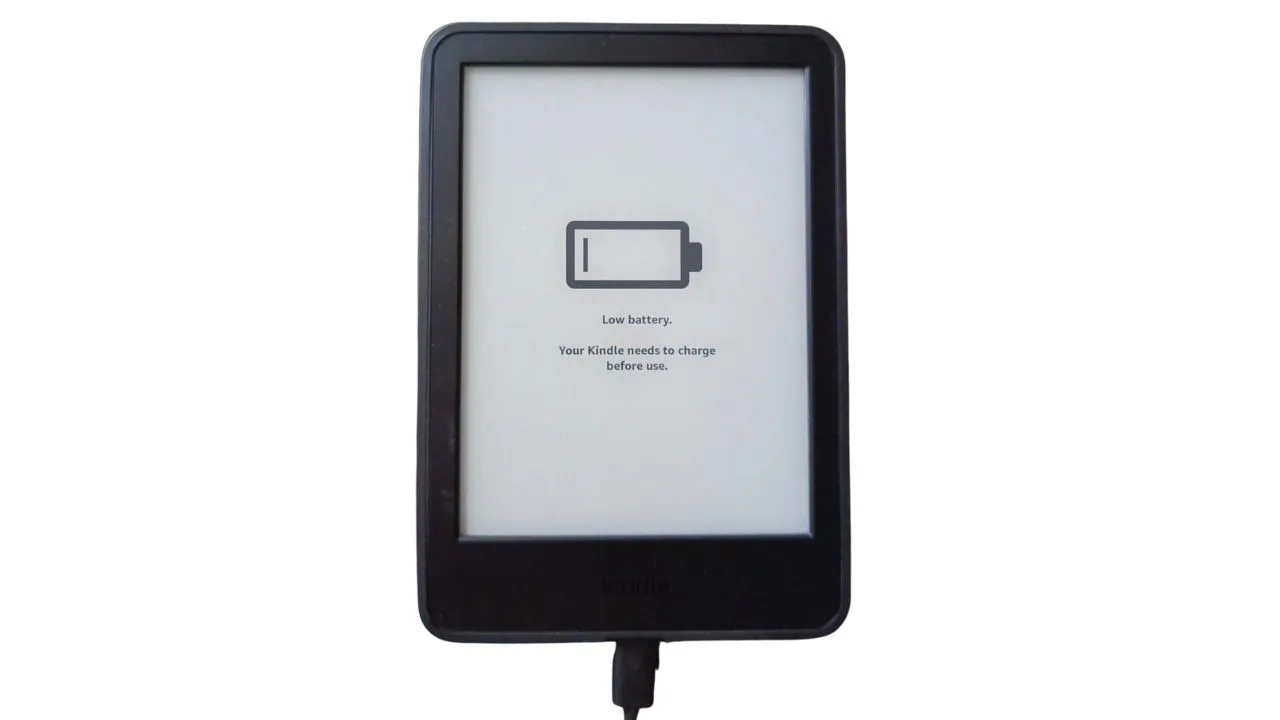
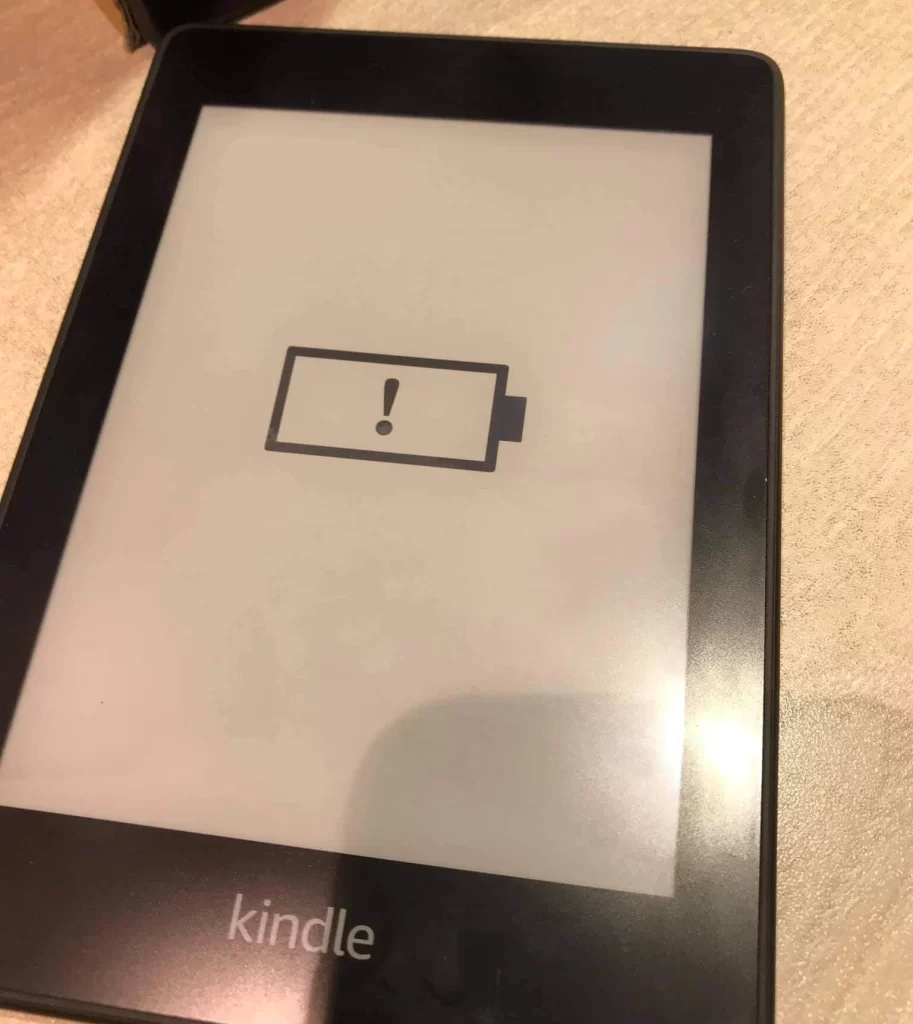
Few things are more frustrating than grabbing your Kindle Paperwhite for a good read, only to find a blank screen or worse, that dreaded battery icon with an exclamation mark. It’s especially frustrating if your Kindle is only a couple of years old and has always been your trusty reading companion.
But don’t rush out to buy a replacement just yet. A Kindle that seems “bricked” is often far from finished. With a handful of tried-and-true troubleshooting steps, most of which require nothing more than your charger, a PC/laptop, and a bit of patience, you can often revive your Kindle and get back to your library in no time.
1. Swap Out the Charging Cable or USB Port
It might seem minor, but a faulty charging cable is one of the most common reasons your Kindle won’t charge. Even if the cable looks fine, it may not be fully compatible with your Kindle. So, try replacing the power cable. Switching to a different cable and USB port can resolve the issue.
2. Test a New Power Adapter or Wall Outlet
If you’re using a power adapter, the issue could lie with the adapter itself. Inspect it for signs of damage or wear. Ensure the cord is firmly connected to your Kindle Paperwhite and the power adapter is plugged into an active socket.
Still not working, try inserting the power adapter into a separate outlet. A specific outlet might be faulty or not provide consistent power. By switching outlets, you eliminate a potential variable in the charging chain.
3.Charge Through a Computer USB Port
One of the most effective fixes involves changing how your Kindle receives power. Wall chargers often deliver higher voltage, which might not work well with a Kindle experiencing power management issues. Computer USB ports, however, deliver a more regulated and lower voltage that can help reset the device’s charging system.
Now, connect the Kindle directly to a computer’s USB port using the device’s charging cable. The computer should recognize the connection, and the Kindle’s charging light should illuminate.
Once connected to the computer, leave the Kindle plugged in for at least 30 minutes. This extended charging period allows the device sufficient time to reset its power management system and properly begin charging. During this time, avoid attempting to power on the device or disconnect it from the computer.
After the 30-minute charging period, perform one final hard reset by holding the power button for 45 seconds. This step helps ensure that the device fully recognizes its restored power state. The device should boot up normally and display its regular home screen instead of the problematic battery icon.
It’s essential to recognize that a deeply discharged battery requires time to regain sufficient charge to power on the device.
4.Perform a Hard Reset (Unplugged First)
Unplug your Kindle from your charging device if it’s currently connected. Locate the power button, typically at the bottom of the device. Then, hold the power button down for approximately 30 to 40 seconds, until the device reboots. This process forces the device to shut down entirely and restart, potentially resolving the internal “block” that’s preventing regular operation.
If the initial unplugged hard reset doesn’t yield any results, attempt the hard reset while the Kindle is connected to a power source next.
5. Clean the Charging Port Thoroughly
Over time, the charging port on your Kindle can accumulate dust or debris that’s actually stuck inside. This build-up can obstruct the connection between the charging cable and the device. To remove it, gently clean the port with a soft brush or soft cloth. Ensuring the port is clean allows for a proper, unimpeded connection.
6.Remove Some Content to Trigger a Sync
Sometimes, a Kindle may freeze due to software glitches or overloaded memory. Removing some books from your Amazon account can prompt the device to sync with Amazon’s servers, potentially resolving the issue.
Log in to your Amazon Account and go to your Amazon homepage, and access the menu (usually represented by three horizontal lines).
Select “Kindle e-readers and books,” then click on “Manage Your Content and Devices.”
Review your Kindle’s library and remove a few books you no longer need. This can sometimes prompt your Kindle to reconnect with Amazon’s servers and reinitiate a sync, which may help if software glitches are contributing to the charging problem.
After removing the content, press and hold the power button for about 40 seconds. Release the button and check if the device restarts.
Note: There is no direct evidence that removing books from an account directly influences a Kindle’s charging or power-on state. This is a long-shot fix. It should not be considered a reliable or primary solution.
7.Consider Replacing the Battery
If your battery is the problem, it’s probably time to replace it. In most cases, replacing the battery will resolve your issues. Replacing the battery is relatively straightforward, but if you’re not comfortable handling electronics, it’s best to leave it to a professional. Use an official Amazon replacement battery, as these are specifically designed for your Kindle and are less likely to cause harm. You can find replacement batteries on Amazon’s website or at most electronics stores. If you still want to attempt it, watch this video.
8.Reach Out to Amazon Support
If none of the above fixes work, your best option is to contact Amazon support, especially if your Kindle is still under warranty. You can also explore a trusted repair service if your warranty has expired.
Frequently Asked Questions (FAQ)
The lifespan of a Kindle Paperwhite is approximately 4 to 5 years, provided it is used regularly. However, the actual lifespan of the device depends on how you use and maintain it. Regular charging and moderate use can extend its life.
Yes, when the orange light is on, it means your Kindle is charging.
Yes, you can use a phone charger to charge your Kindle. Depending on your Kindle model, the phone charger must have a micro-USB port or a USB-C port to connect to your Kindle. Your computer’s USB port can also be used to charge your Kindle.
Related Articles: 22 Tips to Optimize Your Kindle Reading Experience