Best Color E-Ink Tablets for Note-Taking and Productivity
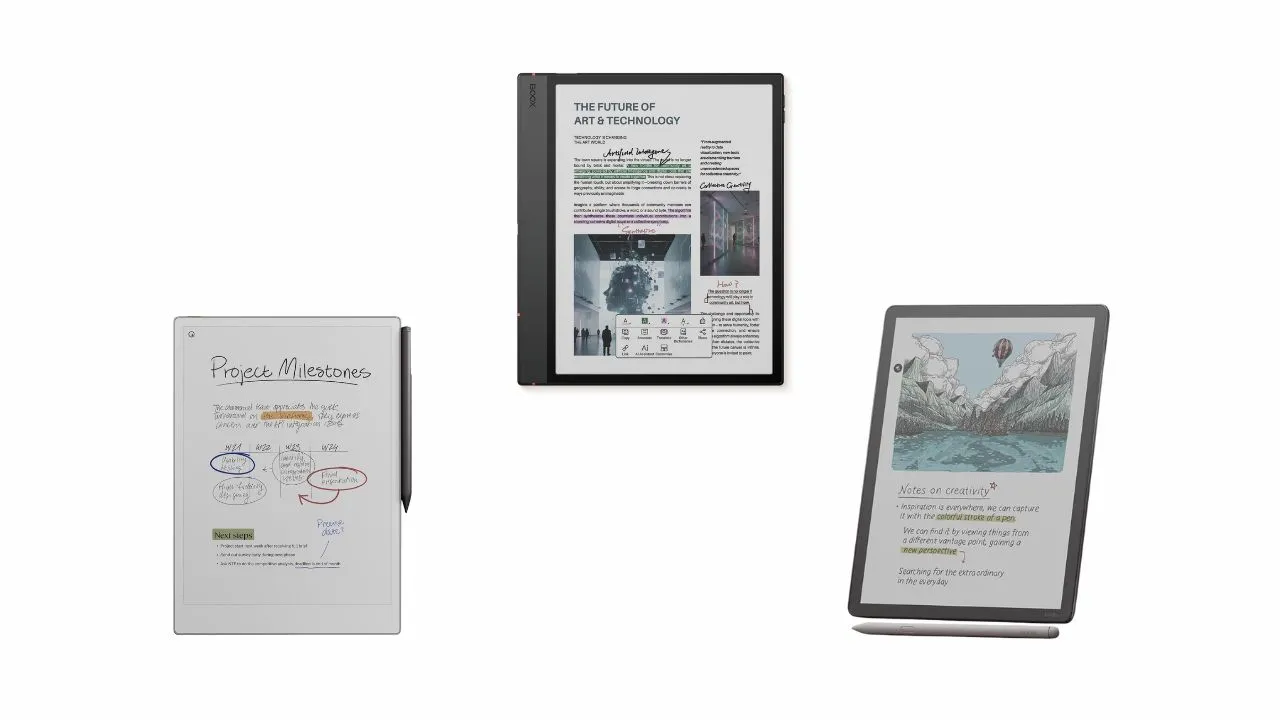
You finally decided to ditch your black and white E-Ink Tablets. You want color, but you also want a screen that feels like real paper. You might feel overwhelmed by the choices. Three big names lead the pack right now. We have the Onyx BOOX Note Air 5C, the reMarkable Paper Pro, and the Kindle Scribe Colorsoft.
These three tablets might look the same at first glance. They all have color screens. They all let you write with a stylus. But they work very differently. Each one takes a completely different approach to color, software, and workflow. Buy the wrong one, and you will feel it every single day.
Let’s break down these devices so you can pick the right color e-ink tablets for your note-taking and productivity.
💡 Color E-Ink tablets like the Boox Note Air 5C are larger, more powerful devices built for note-taking and productivity. They’re different from compact color e-readers like the Kindle Colorsoft or Kobo Libra Colour. If you’re looking for a lightweight reading-only device, check out our best color e-readers guide instead.
Quick Shortlist
| Device | Best For | Display Tech | Price |
|---|---|---|---|
| Onyx BOOX Note Air 5C | Power users who want Android flexibility | Kaleido 3 (10.3″) | Check Price |
| reMarkable Paper Pro | Distraction-free writing, pure notebook feel | Gallery 3 (11.8″) | Check Price |
| Kindle Scribe Colorsoft | Readers who also annotate and take notes | Kaleido 3 (11″) | Check Price |
At a Glance: How They Compare
| Feature | Boox Note Air 5C | reMarkable Paper Pro | Kindle Scribe Colorsoft |
|---|---|---|---|
| Display | 10.3″ Kaleido 3 | 11.8″ Gallery 3 | 11″ Kaleido 3 |
| PPI | 300 PPI (BW) / 150 PPI (color) | 229 PPI | 300 PPI (BW) / 150 PPI (color) |
| CPU | Snapdragon 750G | Quad-core Cortex-A53 (1.8 GHz) | MediaTek quad-core processor (2.0 GHz) |
| RAM | 6 GB | 2 GB | 4 GB |
| Storage | 64 GB | 64 GB | 32 GB |
| Pen tech | Wacom EMR (passive) | Capacitive (charges on side) | Wacom EMR (passive) |
| Writing latency | 16 ms | 15 ms | 14 ms |
| OS | Android 15 + Google Play | Linux-based Codex OS | Amazon OS (Kindle) |
| Battery | 3,700 mAh | 5,030 mAh | 3,800 mAh |
| Weight | 440g/15.5 oz | 525g/ 18.5 oz | 400g / 14.1oz |
Review of the Best Color E-Ink Tablets for Note-Taking
Onyx BOOX Note Air 5C – Best for Versatility & Apps

The Note Air 5C offers the most flexibility of any device on this list. It runs Android 15, which gives you access to the Google Play Store. You can download your favorite work apps, such as Slack, Gmail, or Microsoft OneNote. Most e-ink tablets lock you into a single system, but the Boox opens the door to everything.
Onyx used an asymmetrical body design for the Note Air 5C. This means one side is wider than the other. This side grip makes it easy to hold without accidentally touching the screen. You can rotate the tablet 180 degrees, so it works for both left and right-handed people.
The 10.3-inch Kaleido 3 display runs at 300 PPI for black-and-white content and drops to 150 PPI in color. Colors are muted compared to an LCD, but with the front light set to around 40 nits, charts, diagrams, and color-coded notes look genuinely sharp. The front light on the 5C now reaches up to 101 nits, which makes it the brightest Kaleido 3 display in its size class.
One cool feature is Super Refresh Technology (BSR). It uses a special graphics chip to speed up the screen. This helps when you browse the web or watch a video. It makes the device feel very snappy compared to older e-ink screens.
Onyx put a Snapdragon 750G processor inside. It also has 6GB of RAM and 64GB of storage. You can add more space with a microSD card up to 2TB. This device runs Android 13 and has the Google Play Store. You can download almost any app you want.
Writing performance is where the 5C really sets itself apart. With a pen latency of just 16 milliseconds, it ranks among the fastest e-ink tablets available. The Wacom EMR stylus requires no charging, stays precise on diagonal lines, and snaps magnetically to the device’s right edge.
The design has some quirks. The USB-C port sits on the left side. The power button also acts as a fingerprint scanner. The pen sticks to the side near the volume buttons. Sometimes you might press the volume buttons by accident when you grab the pen.
Battery life is another area where it struggles a bit. It is slightly worse than the older 4C model. This happens because the screen and processor work hard. If you turn the brightness all the way up, the battery will drain faster. But the extra brightness helps a lot in dim rooms.
Pros:
- Most powerful note-taking app in this category, with an infinite canvas, audio recording, custom templates, and handwriting search
- Full Android with Google Play
- Best PDF viewer in the e-ink space, including column mode for multi-column documents
- Lowest pen latency of the three
- MicroSD expansion
Cons:
- Steepest learning curve of the three
- Pen placement can accidentally press volume buttons
- Battery life dips at full front-light brightness
reMarkable Paper Pro – Best for Distraction-Free Focus

The reMarkable Paper Pro does one thing, and it does it without compromise: it replicates the feel of writing on paper as closely as any digital device has managed. The 11.8-inch screen uses E Ink Gallery 3, a true color e-ink technology that uses cyan, magenta, yellow, and white ink particles to produce up to 20,000 colors. This is a completely different approach from the Kaleido 3 filter used by the other two devices.
Gallery 3 colors look more natural and reflective indoors, especially without the front light. Yellow looks genuinely vibrant, and the screen maintains more of that classic paper-white appearance because colors come from the particles themselves, not from blocking light through a filter. The trade-off is that blacks are slightly less deep than on Kaleido 3 devices, and the screen can show a faint blue tint in darker areas.
The front light tops out at 11 nits, which is noticeably dim compared to the other two. You will not use it to compete with ambient light in a bright room. The color temperature is also fixed with no warm/cool adjustment, which feels like a missed opportunity at this price.
The design feels very high quality. It has a metallic body and a textured glass screen. It weighs 525 grams, making it the heaviest tablet in this group. The pen feels grippy and expensive. It connects to the side with strong magnets. It uses capacitive active stylus technology, not Wacom EMR, which means it needs charging.
Writing on the Paper Pro is fast and responsive. Pen latency in independent testing landed around 15 milliseconds, which is excellent. The textured glass surface gives the strongest pencil-like feedback of the three, though the hard pen tip creates a noticeable tapping sound when you lift and place it repeatedly. Some people love this tactile feel; others find the noise distracting in quiet rooms.
One big thing to know is the ecosystem. You cannot use Kindle books or Audible on this device. It is strictly for your own files, like PDFs and EPUBs. You also need a subscription to search your handwriting.
If you want a focused, premium writing experience and don’t mind the limitations, the reMarkable Paper Pro is the most satisfying tool for deep thinking and note-taking.
Pros:
- Most natural, paper-like color rendering without a front light
- Best tactile writing surface of the three
- Clean, focused software that stays out of your way
- Full-disk encryption on the device
- A larger screen gives more room for notes and diagrams
Cons:
- No Kindle or Android app support
- Handwriting search requires the Connect subscription (~$3/month)
- Heavier than the other two at 525g
Kindle Scribe Colorsoft – Best for Kindle Users

Amazon did not just add a color filter to the old Scribe and call it a day. The Kindle Scribe Colorsoft features a completely redesigned 11-inch Kaleido 3 display with a custom oxide-based panel and a new light-guiding layer that reduces shimmer and RGB grain, which usually makes Kaleido 3 look grainy. The result is the cleanest color e-ink display available today.
Colors pop more than they did on older e-ink screens. It makes a big difference for books with pictures. If you read medical books or comics, you will love it. You can see red arteries and yellow nerves clearly in diagrams.
The tablet is very fast. Flipping through pages feels instant. It handles large PDFs with ease.
At just 12 milliseconds of pen latency, the Scribe Colorsoft is the fastest writer of the three. It uses Wacom EMR, so the pen never needs charging, and palm rejection works well enough that you do not need to think about how your hand rests on the screen. The device weighs just 400 grams, making it the lightest option and the most comfortable for long reading sessions.
The battery life is also impressive. You can get 37 hours of reading time if you keep the light at a low setting. Even with the light turned up, you will get through a full week of work on one charge.
The software is Kindle-first, which is both its greatest strength and its main limitation. If you live in the Kindle ecosystem, accessing your entire library in color feels genuinely special. But you can’t install third-party apps, and the note-taking tools, while solid, aren’t as deep as those on Boox or reMarkable. But for most users, the simplicity is a plus.
The e-book annotation system is the best of the three, offering sidebar notes, in-page annotation boxes, sticky notes, and color-coded bookmarks. You also get Google Drive and OneDrive sync. It even supports AI-powered workflows, such as transcribing handwritten notes and generating summaries or podcasts.
If you live in the Kindle ecosystem and want a color E-Ink tablet that just works, this is the one to get.
Pros:
- Best color e-ink display quality available right now
- Lightest and most comfortable to hold
- Strongest e-book reading and annotation system
- No subscription required for handwriting search
- Google Drive and OneDrive integration
Cons:
- PDFs sent via USB show in black and white only; color requires cloud sync
- Ecosystem lock-in with Amazon
- No landscape mode for notebooks
Deep Dive: Note-Taking Features and Software
Document Annotation and PDF Markup
The BOOX Note Air 5C handles PDFs better than any other e-ink device currently on the market. Its column view lets you zoom into a single column of a multi-column document and jump between columns without manual panning. You write directly on the PDF, save it to internal storage, and carry your annotations with you in the original file format.
The Kindle Scribe Colorsoft handles PDF annotation cleanly, but you must send documents via Send to Kindle or through Google Drive to get color support and handwriting features.
The reMarkable Paper Pro lets you write directly on PDF pages in full color, and its 11.8-inch screen displays an A4 page close to its original size. It handles large files quickly. You can add layers to your documents, which lets you hide your edits whenever you want. For PDF-heavy workflows, the BOOX wins on features, but the reMarkable wins on screen real estate.
Organizing Notebooks and Templates
BOOX gives you the deepest organizational toolkit. You get tags, a table of contents, custom templates, infinite scroll canvases, and audio recording alongside your notes.
The reMarkable Paper Pro uses a simple folder system. You organize notes into notebooks, folders, tags, and favorites, with a cleaner interface that requires less setup. It includes high-quality templates for journals and planners. You can also use a feature called “Quick Sheets” to start a new note with one tap from the home screen.
The Kindle is the most limited here. It supports folders and subfolders, 30 well-designed templates, and a grid page overview that shows up to 9 thumbnails at once, but it lacks tags and layers. You cannot sort your notes as easily. It is fine for a few notebooks, but it might get messy if you have hundreds.
Handwriting-to-Text Conversion
All three devices convert handwriting to text, but the details matter. BOOX Note Air 5C indexes handwriting locally without an internet connection and lets you search across all your notes.
The Kindle Scribe Colorsoft converts handwriting in 20 languages and supports offline search once indexed, with no subscription required.
The reMarkable Paper Pro locks handwriting search behind the Connect subscription at ~$3/month, which is a real drawback given the device’s price.
Managing Ecosystems and Cloud Synchronization
Exporting and Sharing Files
BOOX offers the widest range of export options, including PDF, multiple image formats, WebDAV support, and Google Drive and OneDrive.
The reMarkable Paper Pro has great desktop and mobile apps. You can drag a file from your computer into the app, and it appears on your tablet instantly. You can also export your notes as PDFs or images. It has a browser extension that lets you send a web article to the tablet with one click.
It also officially lists Google Drive, Microsoft OneDrive, and Dropbox as supported for file import. You can browse files directly from these cloud services on the device, import documents (including .docx, Google Docs, and .txt files) to the device, and export files back to your cloud storage. However, the integration is limited; it is not a real sync. Exported files are sent as a copy, not synced in place.
Note that reMarkable’s native notebook format is proprietary, so exported files convert to PDF and lose editable layers.
The Kindle Scribe Colorsoft can export via email or to Google Drive and OneDrive. You can use the “Send to Kindle” feature on your phone or computer. It is very easy to use. Annotations embed directly into exported PDFs, so what you see on the device is exactly what you receive on your computer.
Subscription Models vs. Free Cloud Storage
BOOX includes 10GB of free cloud storage and charges nothing extra for core features. All note-taking features, handwriting search, and cloud sync work without paying anything beyond the device price.
The reMarkable Paper Pro gives you 50 days of free cloud sync for recently used notebooks. For unlimited cloud storage and handwriting search, the Connect subscription costs $3/month or around $30/year. That’s not a huge sum, but it adds up, and locking a search feature behind a paywall on an expensive device feels out of place.
The Kindle Scribe Colorsoft syncs through Amazon’s cloud by default, and you cannot turn that off. Google Drive and OneDrive work as additional layers on top, not replacements.
Stylus Experience And Latency
Writing Feel
The Paper Pro offers the most tactile experience. The hard pen tip on the glass screen makes a light tapping sound that feels analog.
The Boox and Kindle pens feel softer. They glide across the screen with less noise. The Boox screen has a film that adds a bit of grit to the writing feel.
Latency and Performance
The Kindle Scribe Colorsoft has the lowest latency at 14 milliseconds. This means the ink follows the pen tip almost perfectly. You will not notice any lag during normal writing.
The Paper Pro is very close at 15 milliseconds. It feels incredibly responsive. The Boox Note Air 5C follows at 16 milliseconds, which is still faster than most older tablets.
Pen Features
Kindle and Boox use Wacom EMR technology. These pens do not require batteries and never need charging. You can also use other Wacom pens if you prefer a different shape or weight.
The Paper Pro pen uses an active battery system. It charges automatically when you snap it to the side of the tablet. This pen has excellent pressure sensitivity for sketching and drawing.
E-Book Reading
The Kindle Scribe Colorsoft dominates here without much contest. It gives you direct access to the Kindle store, Kindle Unlimited, and Comixology, all in one place. Text styling, themes, dark mode (coming system-wide in 2026), Whispersync, and the assistive reader feature all work as you would expect from a dedicated Kindle device.
BOOX supports a wide range of formats, including ePub, PDF, MOBI, and CBZ, and its reading app includes text-to-speech, custom dictionaries, and multiple display options. It is a solid reader, though it lacks the tight library integration the Kindle offers.
The reMarkable Paper Pro is not built for e-book reading. You can load ePub files, but there is no built-in bookstore, no Kindle app support, and the experience is minimal by design. If reading books is a priority, the reMarkable is the wrong pick.
PDF Features
The BOOX Note Air 5C leads comfortably for anyone who reads academic papers, legal documents, or multi-column reports. If you work with large PDFs, get the Boox Note Air 5C. It has the most tools for zooming, cropping, and editing. You can even open two documents side by side. This is great for researchers or students.
The reMarkable is also good for simple PDF marking. The large screen makes it easy to read a full-sized document. But it lacks the advanced cropping tools of the Boox.
The Kindle handles PDFs well. Page turns are fast. But it does not offer many advanced tools. You can write on the PDF, but you cannot change the layout as much as you can on the Boox.
| Feature | BOOX Note Air 5C | reMarkable Paper Pro | Kindle Scribe Colorsoft |
|---|---|---|---|
| Column view mode | Yes | No | No (limited) |
| Direct pen annotation | Yes | Yes | Yes (local; manual cloud export) |
| Color PDF support | Yes | Yes | Yes |
| Landscape mode | Yes | Yes (auto-rotate only, no manual lock) | Yes |
| Special viewing modes | Multiple (Article, Comic, Two-Page, Scroll, etc.) | Contrast filter + fit-to-width/height | Margin crop, fit-to-page, landscape |
Final Verdict
So, which color E-Ink tablet should you buy?
Get the BOOX Note Air 5C if you want a device that does everything: notes, PDFs, apps, reading, and a fully customizable Android workflow. It handles the widest range of tasks and costs the least of the three. Accept the learning curve, and it becomes the most powerful e-ink tablet you can buy.
Get the reMarkable Paper Pro if you want a distraction-free digital notebook that genuinely feels like writing on paper. The Gallery 3 display offers the most natural color rendering without a front light, the software stays clean and focused, and the build quality rivals anything in this space. Just accept that you cannot read Kindle books on it, the front light stays dim, and handwriting search costs extra.
Get the Kindle Scribe Colorsoft if reading is your main activity and note-taking sits alongside it. The display quality is the best among Kaleido 3 implementations, the writing latency is the fastest of the three, and the Kindle ecosystem makes book access effortless. At $630, it earns its price as the most balanced and grab-and-go option of the bunch.
Each tablet brings something unique. The best one for you depends on how you work, read, and write.