Xteink Troubleshooting Guide: 21 Quick Fixes for X3, X4, X4 Classic, and X4 Pro Problems
Most Xteink device problems come from firmware flashing, a weak cable, a flaky microSD card, or a software setting. Almost all of them have a fix you can try in minutes. This guide covers the X3, original X4, X4 Classic, and X4 Pro. Start with the section that matches your symptom, and change one thing at a time.
Before you start, note your exact model, firmware name and version, and whether you bought a Global or Chinese-market unit. The original X4 and X4 Classic need different firmware builds, so don’t pick a download based on the X4 name alone. Before formatting your microSD card or changing firmware, copy everything on the card to your computer, including hidden folders. Keep that backup untouched while you troubleshoot.
Xteink Battery Troubleshooting: Draining Way Too Fast
This is the number-one complaint across every Xteink model. You charge your X3 or X4 to 100%, set it down for the night, and wake up to find it sitting at 80% or lower. You might be losing 20% or more in just a couple of hours while the device sits completely idle.
The culprit is almost always the power button setting, and it catches nearly everyone off guard.
Power Button Sleep Drain: The Short vs. Long Press Trap
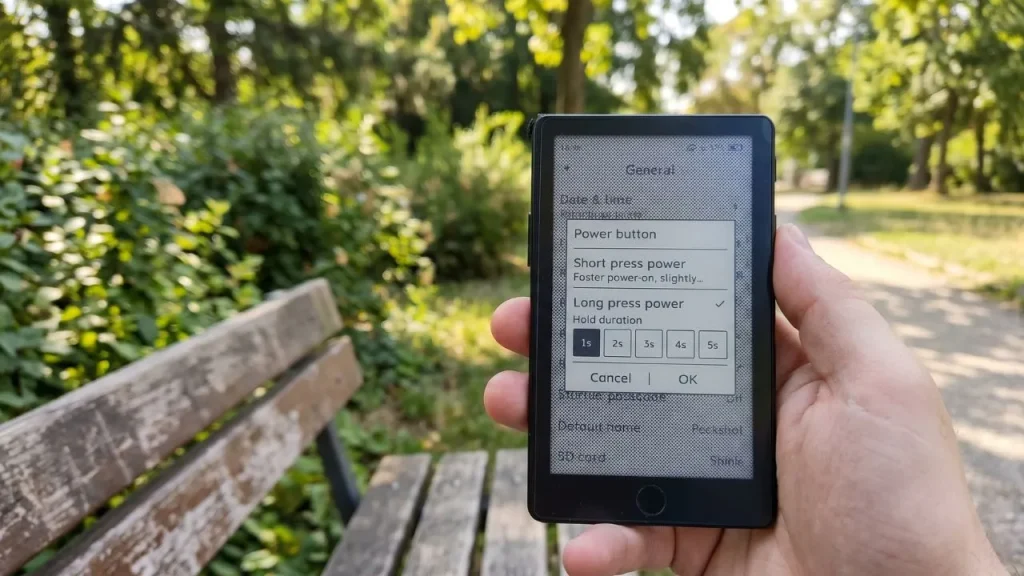
Your Xteink has two power button modes buried in the settings: short press and long press. In short-press mode, tapping the power button puts the device to sleep instead of shutting it down. It looks the same on screen, and the device appears off, but it keeps running in the background and quietly drains your battery.
Switch to long press mode instead. Go to Settings > General > Power Button > Long Press Power. This actually turns the device off when you press the button. You can see the difference, from losing 6-10% overnight to barely losing any charge over an entire week.
Long press adds about two seconds to your startup time. That tradeoff is worth it when your battery stretches from days to weeks.
Firmware Updates That Fix Battery Drain
Xteink regularly releases firmware updates; sometimes they address battery drain issues. If you’re running stock firmware and haven’t updated in a while, check for updates in Settings > System Update.
If you’re using CrossPoint or CrossInk firmware, battery drain during sleep is far less of a problem. CrossPoint uses a more efficient deep sleep mode that sips almost no power.
Inaccurate Battery Percentage Drops (Calibration Fix)
Sometimes Xteink devices show wildly inaccurate battery readings. You might see 80% one moment, then watch it plummet to 3% minutes later. The percentage bounces around like it can’t decide where it stands.
The fix is low-tech but effective: drain the battery to absolute zero. Let the device die completely, then charge it back to 100% without interruption. This recalibrates the battery gauge. The device uses a simple power-measurement system, so it sometimes needs this full cycle to report accurate numbers.
If the problem persists after recalibration, try replacing your microSD card. A cheap or failing SD card can cause unexpected power draw.
Screen Freezes and Soft-Bricking
Nothing kills the reading mood faster than a frozen screen. Your Xteink locks up, buttons do nothing, and you stare at the same page, wondering if your device just died. This happens most often during firmware flashing, but it can strike during normal use too.
How to Hard Reset a Frozen Xteink (Pinhole Reset)
Start with the basics. Locate the tiny reset pinhole on your device. Press it with a SIM ejector tool or a paperclip, then hold the power button for about 10 seconds. This forces a hard reboot and clears most temporary freezes.
If a simple reset doesn’t bring it back, plug the device into a charger first, then try the reset sequence again. E-ink screens hold their image even without power. So, sometimes a seemingly frozen display might just mean your battery is completely drained.
If it starts up but freezes again on the same book, try another title before flashing anything. You can also turn the reader off, remove the microSD card, and check whether startup changes. Even a missing-card message is a useful clue when the alternative is getting stuck on the same chapter every time.
Frozen After Flashing Firmware
Flashing new firmware is where things get tricky. Your device might freeze on the stock home screen or get stuck on an “Update completed, automatic restart in progress” message that never actually restarts.
First, press the reset button, then long-press the power button. After this reset, the device completes the update and boots normally. The screen message is misleading: the update finishes, but the device still needs a manual push to restart.
If it still won’t boot, check that the firmware build matches your exact model and hardware revision.
Xteink Firmware Flashing & CrossPoint Failures
Getting custom firmware onto your Xteink can feel like solving a puzzle, especially if you own a Chinese or locked variant. The most common barrier is the web flasher tool not detecting your device. For the full flashing steps, see the X4 CrossPoint install guide or the X4 Pro install guide.
Web Flasher Not Detecting Device: Power-Only USB Cables
The number-one reason the CrossPoint web flasher can’t find your device is the USB cable. Many cables bundled with devices carry only power. They look identical to data cables, but they can’t transfer firmware.
Try a different USB cable, preferably one you’ve used successfully for file transfers before. Try both USB-A to USB-C and USB-C to USB-C options. Switching cables can solve detection issues.
The Device Must Be Awake
Your Xteink must be powered on, awake, and on the home screen before you connect the USB cable. If the device is sleeping or turned off, the web flasher won’t see it. Power it on first, make sure you’re looking at the main menu, then plug in the cable.
Also, use Chrome. The CrossPoint web flasher relies on Web Serial API support, and Chrome handles this more reliably than other browsers. Check your browser’s site permissions too. Click the lock icon to the left of the URL bar and confirm that the site has permission to access serial devices.
Flashing a Locked Chinese Variant X4 Pro
The Chinese/mainland variant of the X4 Pro ships with USB flashing disabled. However, you no longer need the OTA Unlocker tool as your first step:
Method 1: SD Card Flashing (Recommended):
- Update your X4 Pro to the latest official Licorice OS from Xteink to unlock native microSD card flashing. Place your CrossPoint or CrossInk .bin file on the SD card to flash directly without extra software.
Method 2: OTA Xteink Unlocker (Last Resort for Older Firmware):
- If your device is stuck on older stock firmware and refuses an SD card flash, use the OTA Xteink Unlocker to package the firmware into an encrypted OTA format over a local hotspot.
OTA Unlocker Steps:
- Download and install the Xteink Unlocker desktop app for Windows, macOS, or Linux.
- Delete all saved Wi-Fi networks on your X4 Pro (if you skip this, the device will drop the unlocker hotspot and reconnect to your home router mid-process).
- Start the 2.4 GHz hotspot from the Unlocker app (Xteink readers do not support 5 GHz bands) and select your target firmware.
- Connect your X4 Pro to the Unlocker hotspot in your Wi-Fi settings.
- Navigate to the device’s system update settings, check for updates, and let the OTA installation finish.
The OTA tool doesn’t unlock your physical USB port for future web flashing, so you must place all subsequent CrossPoint or CrossInk updates directly on your SD card.
You can handle later updates from your phone also, if your X4 Pro already supports Wi-Fi file transfer and SD-card firmware updates. Download the matching .bin file on your phone, upload it to the microSD card through the reader’s Wi-Fi transfer page, then open the reader’s settings and select the SD-card firmware update option.
Custom Firmware Won’t Stick (Reverting to Stock OS)
If CrossPoint keeps dropping back to the stock home screen, the SD card is the usual cause.
- Replace your SD card. The stock microSD cards that ship with Xteink readers are often low quality and can cause incomplete writes.
- Reformat the card completely between attempts. A corrupted card can silently sabotage every flash.
If it still won’t stick, the X4 install guide covers the boot partition swap and how to back up and restore before you try it.
Accidentally Flashed Chinese Firmware
If you accidentally flash the Chinese firmware and see Chinese menus, connect via USB-C, go to crosspointreader.com/install, select your model, choose XTeink Factory Firmware (Stock English) under “Other firmware,” and flash it back.
Display and Screen Quality Issues
E-ink screens behave differently from the LCD displays you’re used to. Some visual quirks are normal. Others point to fixable software settings or, occasionally, defective hardware.
If your X4 Pro looks fine in daylight but you can’t read it in bed, check the frontlight brightness in quick settings. You may simply need to turn the light on. The X3 and X4 Classic don’t have built-in front lights.
Faded or Washed-Out Text on Xteink
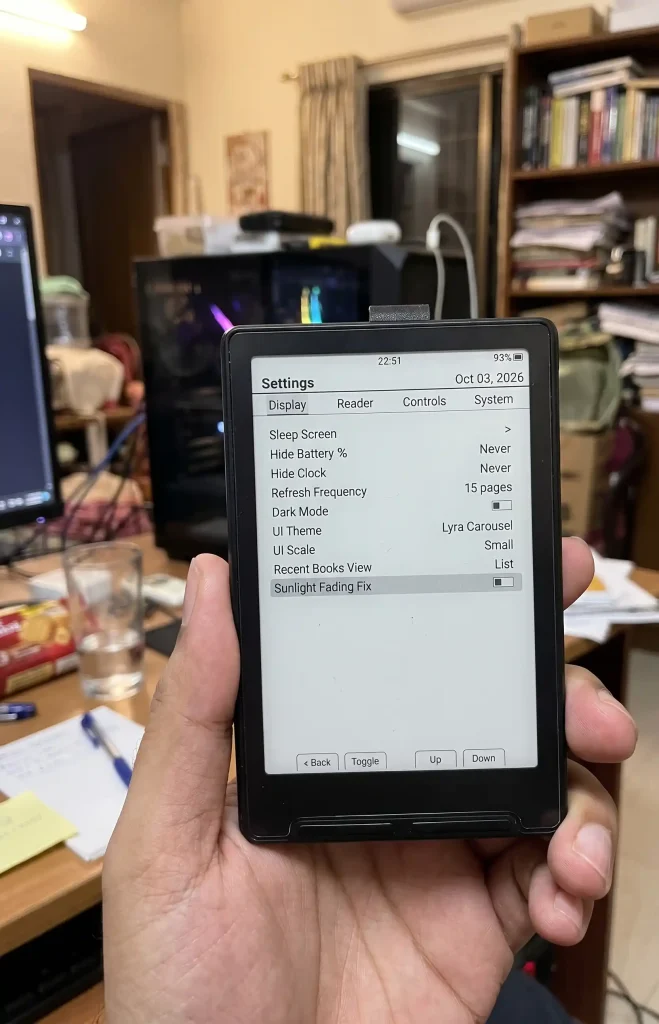
If your text looks light and wispy, like someone turned the contrast way down, check the “Sunlight Fading Fix” toggle in your CrossPoint settings. This setting is designed for outdoor reading, but it can make text look washed out indoors. Try toggling it on and off to find the right look.
Turning off anti-aliasing also sharpens text on many devices. Go to your reader settings and disable it. If you are running CrossInk on the X4 Pro, this fixed faded text completely.
If the fading gets worse over time, your screen itself might be defective. Trying CrossInk firmware can reduce fading on a marginal screen, but it won’t fix a hardware defect.
Sleep Screen Showing Streaks
You close your book, the device goes to sleep, and the sleep screen shows ugly streaks across your cover image. The fix is simple: go to Settings > Sleep Screen and change the cover filter to “Contrast.” This cleans up the rendering and removes those visual artifacts.
You can also optimize your book covers before loading them. A tool like wallpaperconverter.jakegreen.dev converts images to the bitmap format that Xteink screens render best.
If the cover is missing altogether, check that the ePub itself contains it. Seeing a cover in Calibre doesn’t guarantee it’s inside the transferred file. For a book without DRM, add or update the cover in Calibre, save the edited book, and transfer it again. Refresh that book’s cached data through your firmware’s menu, then check your sleep-screen selection.
Screen Flickering on the X4 Pro
The X4 Pro has a known issue where each tap triggers a visible frontlight and contrast adjustment, creating a distracting flicker. This happens on both stock and CrossPoint firmware.
Flash CrossPoint and disable anti-aliasing in the display settings. It improved the letter flickering. May help screen flickering, too.
For the sharpest possible text, download the Atkinson Hyperlegible font through Settings > Font Management. It is the best-looking font option for Xteink’s lower-resolution screens.
You can also set your power button’s short-click action to “Refresh Screen” for a quick manual clean-up whenever ghosting builds up.
Extra Screen Refreshes During Reading
Your reader might refresh the full screen every two or three page turns, even when you’ve set it to refresh every five pages. Tiny images embedded in the ePub file cause this. Section dividers, decorative flourishes, and invisible tracking pixels all count as images, and each one triggers a full refresh.
Go to your reader settings and turn on “Suppress Images.” This stops those micro-images from forcing extra refreshes.
USB Connection and Computer Detection Problems
“USB Device Not Recognized” Errors
Connecting your Xteink to a computer for file transfers or firmware flashing sometimes produces a “USB device not recognized, Code 43” error. The device charges just fine but refuses to show up as a storage device.
First, check whether your model supports USB file transfer:
- Original X4 and X3: These do not expose their microSD card as a USB storage drive. Use a supported wireless transfer method or a microSD card reader. Not appearing in File Explorer is expected.
- X4 Pro with stock firmware: USB file transfer is supported. Connect it to your computer, open the upper-right menu on the Home screen, and select USB Mode.
- X4 Classic / X4 V2: The method depends on your firmware. Xteink lists app and microSD transfer, while compatible CrossPoint builds provide USB Drive mode.
If your model and firmware support USB file transfer, check these three things:
- The device must be turned on. Your Xteink must be awake and on the home screen. It won’t mount as a storage device if it’s asleep or powered off.
- Try a different cable. Again, power-only cables look identical to data cables. The cable that came in your Xteink box may or may not carry data.
- Use USB-C to USB-C if possible. If you struggled with USB-A to USB-C adapters, try a direct USB-C connection first.
Calibre Connection Issues
Calibre worked fine with your Xteink until one day it didn’t. Usually, this breaks after either Calibre or your computer’s OS pushes an update.
For Wi-Fi, first open File Transfer on your reader and leave that screen open. CrossPoint stops its local server when you leave it. Try the address shown on the reader in your computer’s browser. If the page opens but Calibre still won’t connect, focus on the Calibre plugin.
Check these settings:
- Update the Calibre CrossPoint plugin to its latest version
- Verify the plugin IP matches the IP address shown under File Transfer on your Xteink
- Make sure no VPN is active (VPNs frequently block local network device discovery)
- Check your OS privacy settings, as recent macOS and Windows updates sometimes revoke USB or network permissions silently
ePub Book, Library, and File Format Problems
“Failed to Index” and “Invalid Book” Errors
You transfer a book through Wi-Fi, optimize it through CrossPoint, and get slapped with a “Failed to Index, Invalid Book” error. Two likely causes:
DRM protection. Xteink e-readers can’t open books locked with Digital Rights Management. If you borrowed a book through a library app or downloaded an `.acsm` file, it carries DRM restrictions.
Corrupted SD card. A failing SD card can corrupt files during transfer, even if the transfer appears successful.
Before replacing the card, test one small, DRM-free ePub that opens correctly on your computer. Copy it directly to the card without optimizing or converting it. If that book works, check the troublesome title in a desktop reader and compare it to an untouched copy. A file that fails after processing may need a fresh download or restored original formatting.
If the untouched, DRM-free original still refuses to index, its internal structure may be the problem. Try an ePub-to-ePub conversion in Calibre on a copy of the book, then transfer the converted file and test it again. This can help with malformed content or table-of-contents data.
For DRM-protected books, CrossPoint 2.0 added a “Protected Contents” plugin. Install it on your device, authenticate through the web interface, and upload the `.acsm` file directly. This works with library lending services like eBiblio. Alternatively, use Calibre on your computer with the DeDRM plugin to convert protected files to clean ePub format before transferring them.
Hyphenation Glitches and Question Marks
Some ePub files show a question mark after every hyphen, which looks especially ridiculous in books with lots of hyphenated names. This usually stems from the ePub file itself containing unusual Unicode characters that the firmware’s font can’t render.
Try these fixes in order:
- Delete the book from your device and re-add it without optimizing. Calibre’s optimization process sometimes inserts characters that the reader can’t display.
- Disable embedded style and enable the reader’s built-in hyphenation in Settings > Reader > Text Settings > Style > Hyphenation.
- Switch fonts. Some fonts handle special characters better than others.
- Try Lefteri’s fork of CrossInk firmware, which includes corrected hyphenation rendering.
Repeating Lines Bug
Your book suddenly starts repeating the same line of text over and over, filling the entire page before flipping to a blank one. This is a known bug in the stock Xteink firmware.
Close the book and reopen it. If that doesn’t clear it, rebuild the book cache through the reader’s menu. The most reliable fix is switching to CrossPoint or CrossInk firmware.
Missing Library Search Function (Folder & Firmware Fixes)
If you’re hunting through hundreds of books looking for a specific title, you’ll notice that neither the stock firmware nor early CrossPoint builds include a search function. There’s no search bar or filter for your library.
The workaround is folder organization. Create folders on your SD card by genre, author, or series. This also helps the reader’s indexing, as it handles a few hundred books spread across multiple folders much better than thousands of files dumped into one directory.
Witch(Hunt), an alternative firmware option, does include a search function and handles it quickly. If search is a must-have feature, it’s worth trying.
Newer CrossPoint builds also offer title and author searches. If you’re already using CrossPoint, check the library features available in your version before switching firmware just to get a search bar.
Bluetooth and Connectivity Issues
Bluetooth Forgetting Paired Devices
Your X4 Pro pairs fine with a Bluetooth page turner, but every time the device goes to sleep, it forgets the connection. You have to re-enable Bluetooth and reconnect manually each time you pick up the reader.
Start by checking the page turner’s battery. Wake the reader, forget the saved remote in Bluetooth settings, and pair it again. Disconnect the remote from any nearby devices that might compete for the connection, then test a single page-turn button before checking whether it reconnects after sleep.
This was a confirmed bug in Licorice firmware. The developer pushed a fix through a Licorice firmware update. Make sure you’re running the latest firmware version, and the reconnection should persist through sleep cycles.
When It’s Hardware: Xteink Support & Community Help
Some problems have no software fix. Horizontal or vertical lines across the screen, persistent fading that no setting change resolves, buttons that physically stick- all point to hardware defects.
Contact Xteink support through their website live chat. If your device is within the return window, push for a replacement rather than a repair. For website purchases, email support@xteink.com. For Amazon or TikTok Shop purchases, use help@xteink.com. Include your model, firmware version, order number, a clear photo or short video, and the tests you’ve already tried. If the trouble started after an update, name the last version that worked.
The Xteink e-reader community is one of the more active and helpful groups you’ll find online. If you hit a wall with official support, the r/XTEINK subreddit, the official Facebook group, and the CrossPoint Discord server all have experienced users and developers who respond quickly. Your tiny e-reader might give you headaches from time to time, but between community knowledge and the growing firmware ecosystem, there’s almost always a fix waiting for you.
Recommended Reading
How to Add a Dictionary to Your Xteink E-Reader (X3 & X4 Pro)
Once your reader is stable, make it more useful for everyday reading. This guide shows how to add a dictionary to your Xteink X3 or X4 Pro, so you can look up unfamiliar words without leaving the page, and it builds on the firmware and reading settings covered here.
How to Read E-Books for Hours Without Eye Strain
Faded text, ghosting, and sleep-screen streaks are common on e-ink displays, and the right settings help. This guide covers font, contrast, lighting, and layout adjustments that reduce fatigue, so once your Xteink runs smoothly, you can read comfortably for hours without squinting or headaches.